
How to share an account with your team without sending the password
Teams working on social media, ads, or e-commerce often need to share account access with multiple team members for collaborative management. The simplest
Teams working on social media, ads, or e-commerce often need to share account access with multiple team members for collaborative management. The simplest approach is to send usernames and passwords via chat, files, or password management tools. However, the more people who have access to login credentials, the more complicated account control becomes.
Another approach is to share pre-logged-in Browser Profiles. Team members are granted permission to work directly on these Profiles instead of having to receive passwords and log in from scratch.
This is also the logic used by multi-account management tools to reduce the need for direct sharing of login credentials.
👉 Start your free trial of InviBrowser to create dedicated browser profiles and manage account access permissions for each team member.
Why is sending passwords directly to the team not the optimal approach?
When only two people are working together, sharing passwords may not cause many issues. However, as the team expands, a single account may be assigned sequentially to Media Buyers, Social Executives, Account Managers, or new employees.

At this point, login credentials are likely to appear in multiple places:
-
Private message.
-
Group chat.
-
Excel or Google Sheets file.
-
Internal note.
-
Multi-user password manager.
The problem is not just that passwords could be leaked. The team also has difficulty knowing:
-
Are you saving login information?
-
Do I still have the right to use it?
-
When do I need to change my password?
-
Where have the passwords been shared?
Therefore, as the number of members and accounts increases, managing access permissions instead of directly sharing login credentials will become increasingly important.
Is sharing a browser profile the same as sharing a password?
This is the most important point when building an account management process for the team.
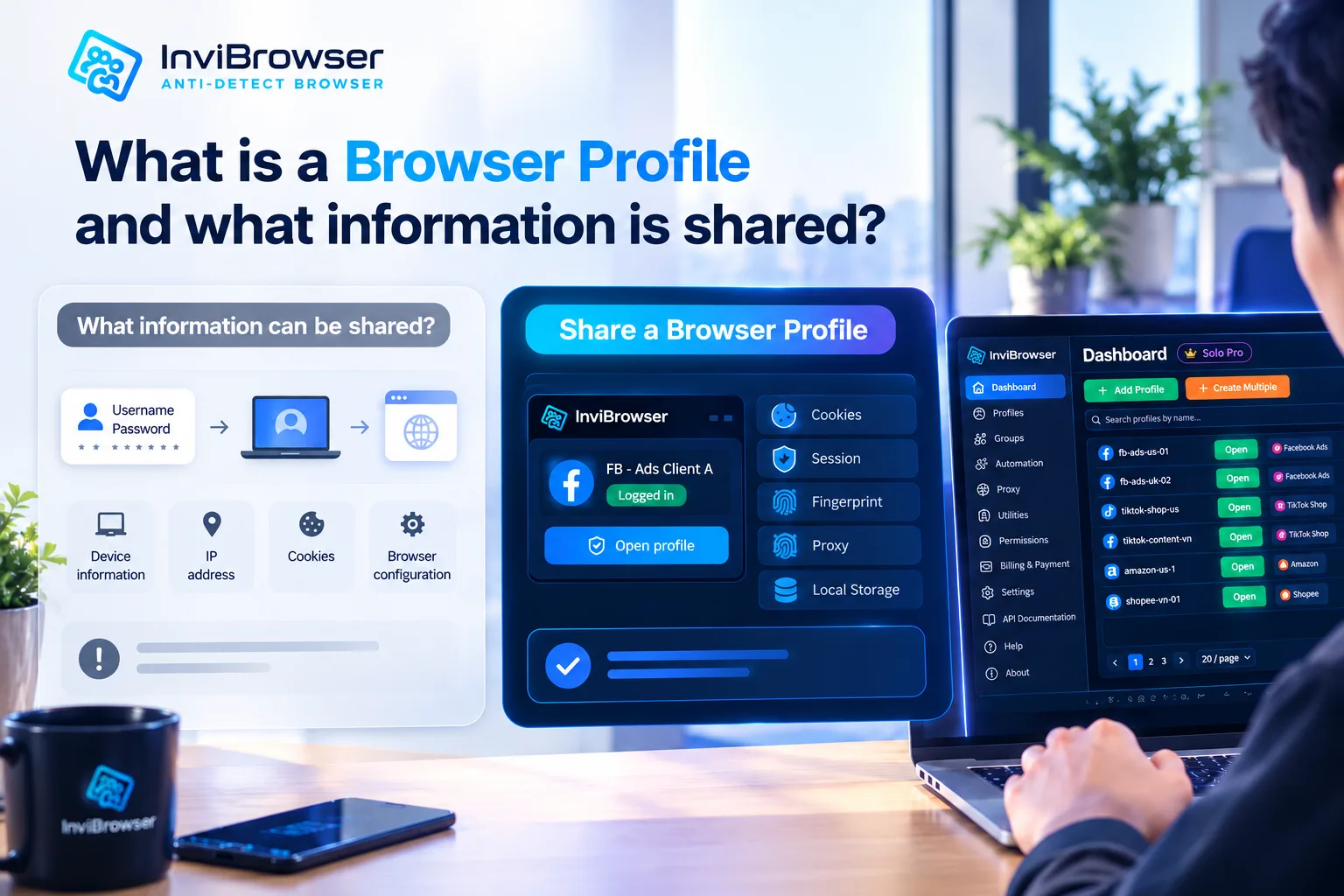
Method 1: Share the password
The usual process is:
Send username + password → Member logs in on their own device → Website creates a new login session.
Each member can use:
-
Other browsers.
-
Other devices.
-
Different IP address.
-
Other Cookies.
-
Configure other browsers.
This means that every time there is a handover, the recipient almost has to rebuild the access environment from scratch.
Method 2: Share Browser Profile
With Browser Profile, accounts can be logged in and maintain sessions within an isolated environment.
A profile typically contains the following components:
-
Cookie.
-
Session.
-
Proxy.
-
Browser fingerprinting.
-
Local Storage and related browser data.
Managers can share Profiles or Profile access rights with team members instead of sending passwords.
When opening an assigned Profile, members can continue working in the previously set up environment if their login session is still valid.
Simply put:
Do not hand over passwords → provide a pre-configured working environment.
👉 Learn more about how to create and manage Browser Profiles on InviBrowser.
Why are Sessions important when sharing accounts?
After you log in to a website, the system usually creates a login session to confirm that the user has been authenticated.
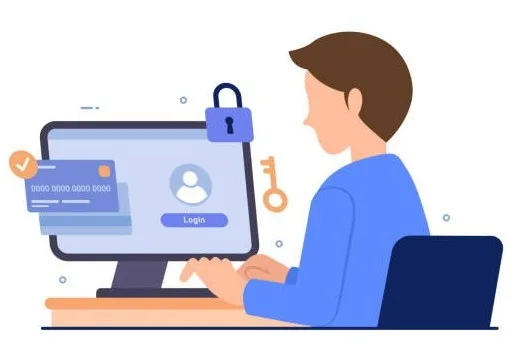
The browser stores related data, among which Cookies and Sessions play a crucial role in maintaining login status.
This is why you don't have to re-enter your password every time you navigate to a different page within the same account.
Some account sharing solutions take advantage of this very mechanism: instead of providing a password, the team operates via an existing login session.
However, it should be noted that the session may expire or be revoked by the website. In that case, the account owner may need to log in again.
Which teams should use the Profile sharing feature?
Facebook Ads and TikTok Ads Team
Agencies often have to manage multiple client accounts at the same time.
Leaders can create profiles for each client and assign them to the appropriate media buyer in charge.
As a result, staff do not need to keep the entire list of customer passwords.
Social Media Team
A Social Team can jointly manage:
-
Facebook.
-
TikTok.
-
Instagram.
-
X.
-
Other brand accounts.
Instead of sharing the password every time there is a change in the page moderator or when posting content, the team can set up separate profiles for each brand or platform.
E-commerce and Seller
The Seller may need to grant shop operation permissions to:
-
Customer service staff.
-
Staff post products.
-
Advertising operation personnel.
-
External agency.
Browser Profile helps separate the environments of individual stores and supports a more organized handover process.
Affiliate & MMO Team
Teams managing a large number of Profiles can allocate resources according to:
-
Campaign.
-
Account.
-
Market.
-
Operator.
As the scale grows, this organizational approach is usually easier to manage than maintaining a table containing dozens of usernames and passwords.
Managing and Sharing Profiles with InviBrowser
When a team has multiple members operating multiple accounts, sharing Profiles allows switching from the model:
"Whoever needs an account, send the password"
sang:
"Each person will be granted the profile corresponding to the account they are in charge of. "
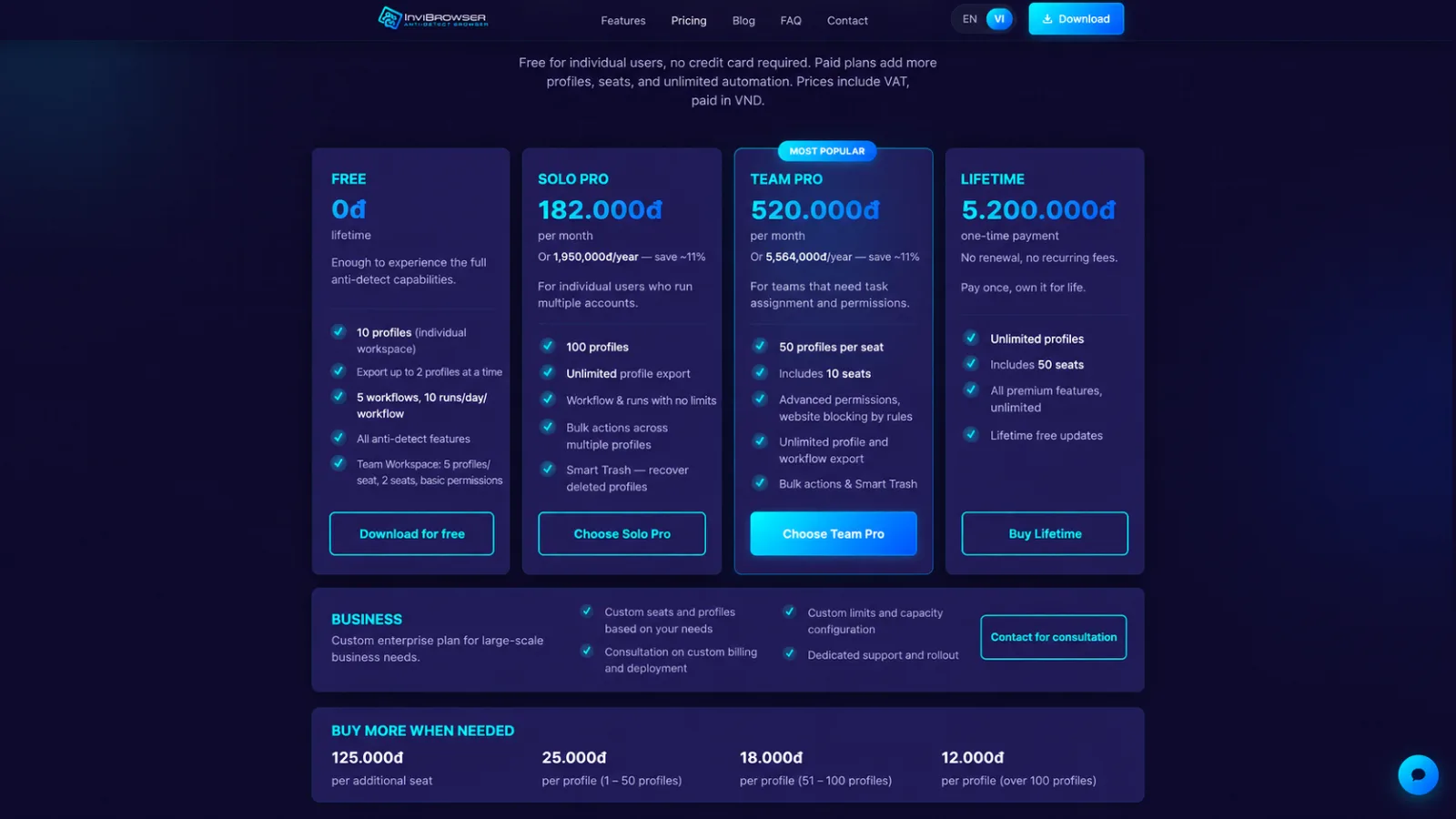
With InviBrowser, teams can combine:
-
Separate browser profile for each account.
-
Cookies and Sessions per Profile.
-
Private proxy.
-
Group and assign permissions to members.
-
Centralized management of multiple profiles.
-
Hand over the profile to the person in charge.
As a result, the team can reduce the need for direct password sharing, while also maintaining a more organized work environment as the number of accounts is scaled up.
👉 Start experiencing InviBrowser
How to Share Your Profile with the Team Using InviBrowser
Step 1: Create a Browser Profile for each account
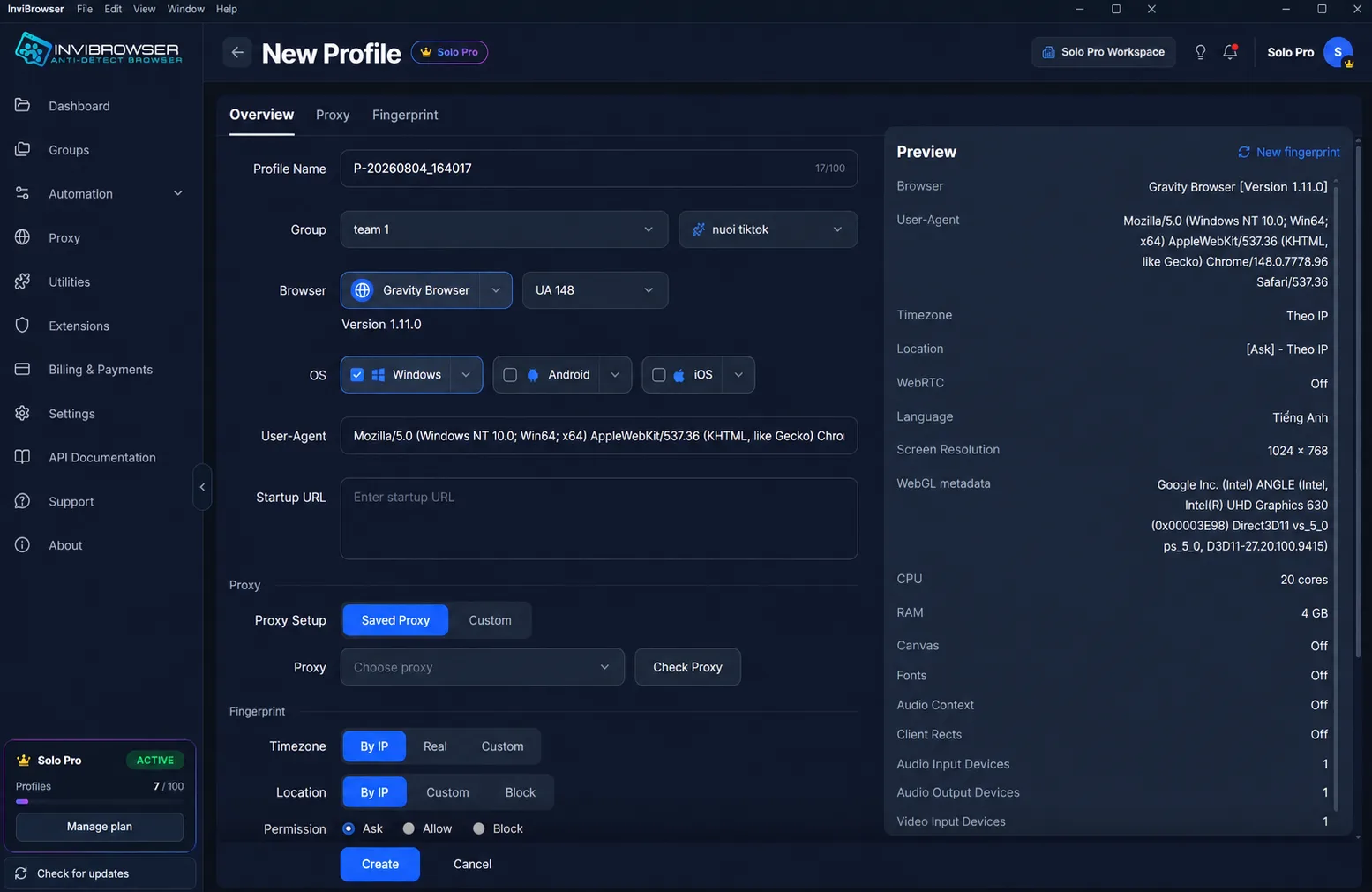
Go to Profile → click Add New to create a profile.
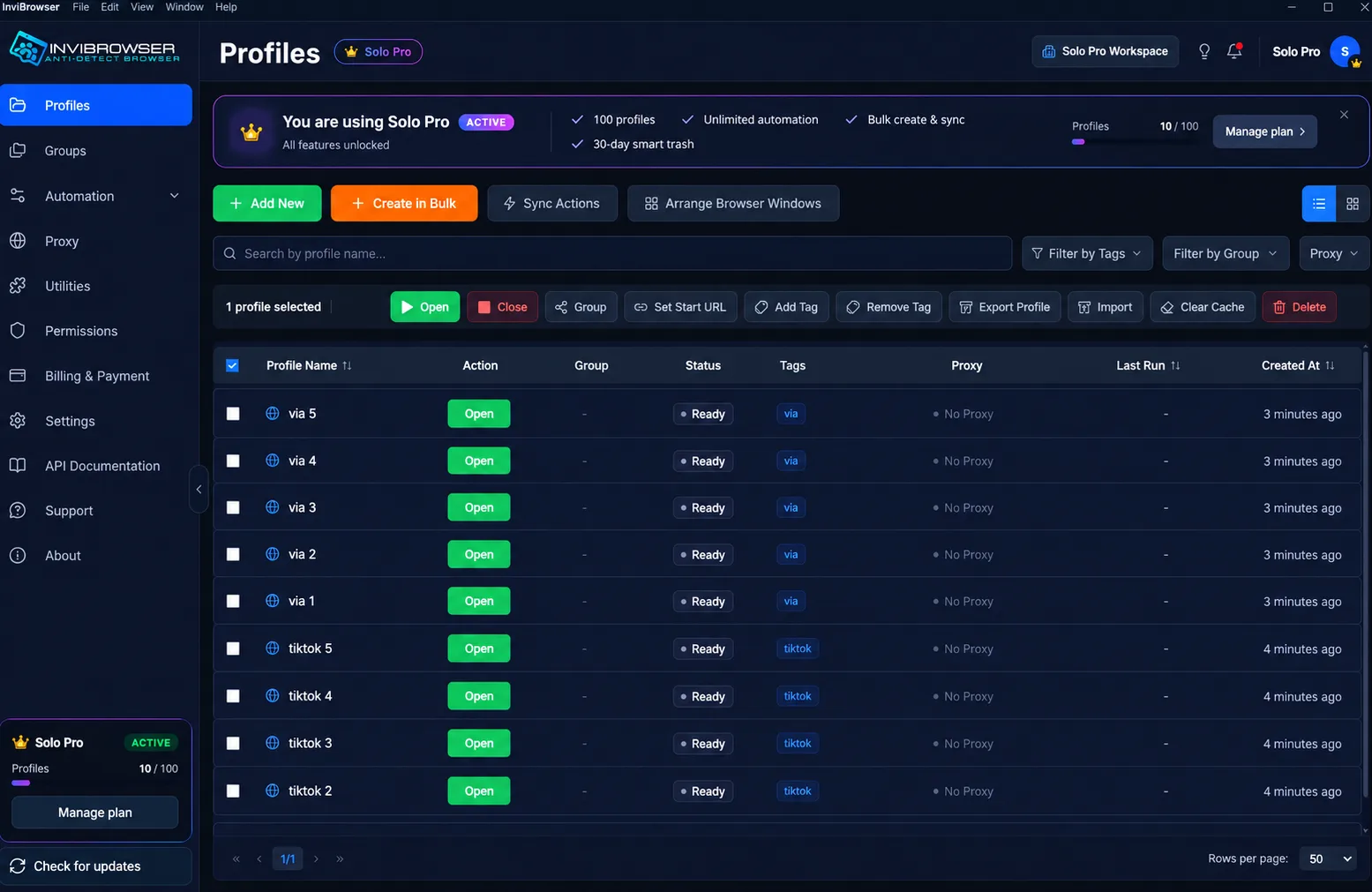
Name and Configure the Profile
Name the profile according to the account you need to manage, select the appropriate group, and keep the default browser configuration if no customization is required.
Set up Proxy and Create Profile
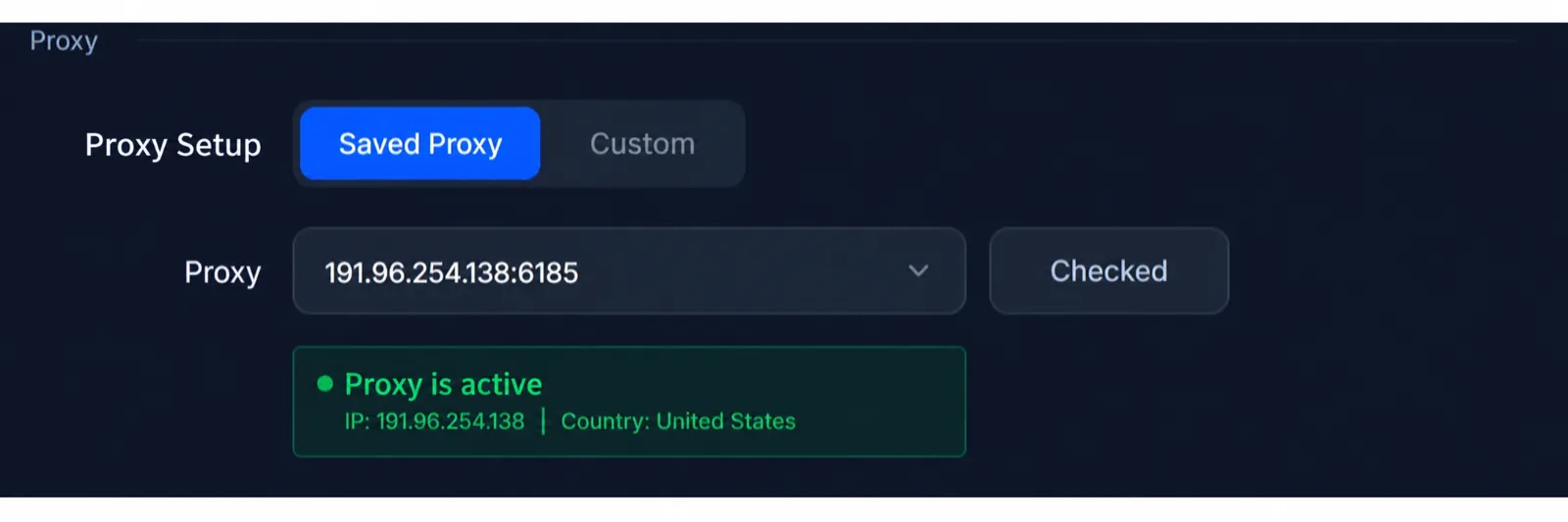
Select or enter a Proxy, then click Check proxy. Verify the Fingerprint and related information in the Preview section, then click Create to finish.
👉 View the guide to creating and managing Profiles on InviBrowser.
Step 2: The account owner logs in
Managers can log in to their accounts directly on Browser Profile.
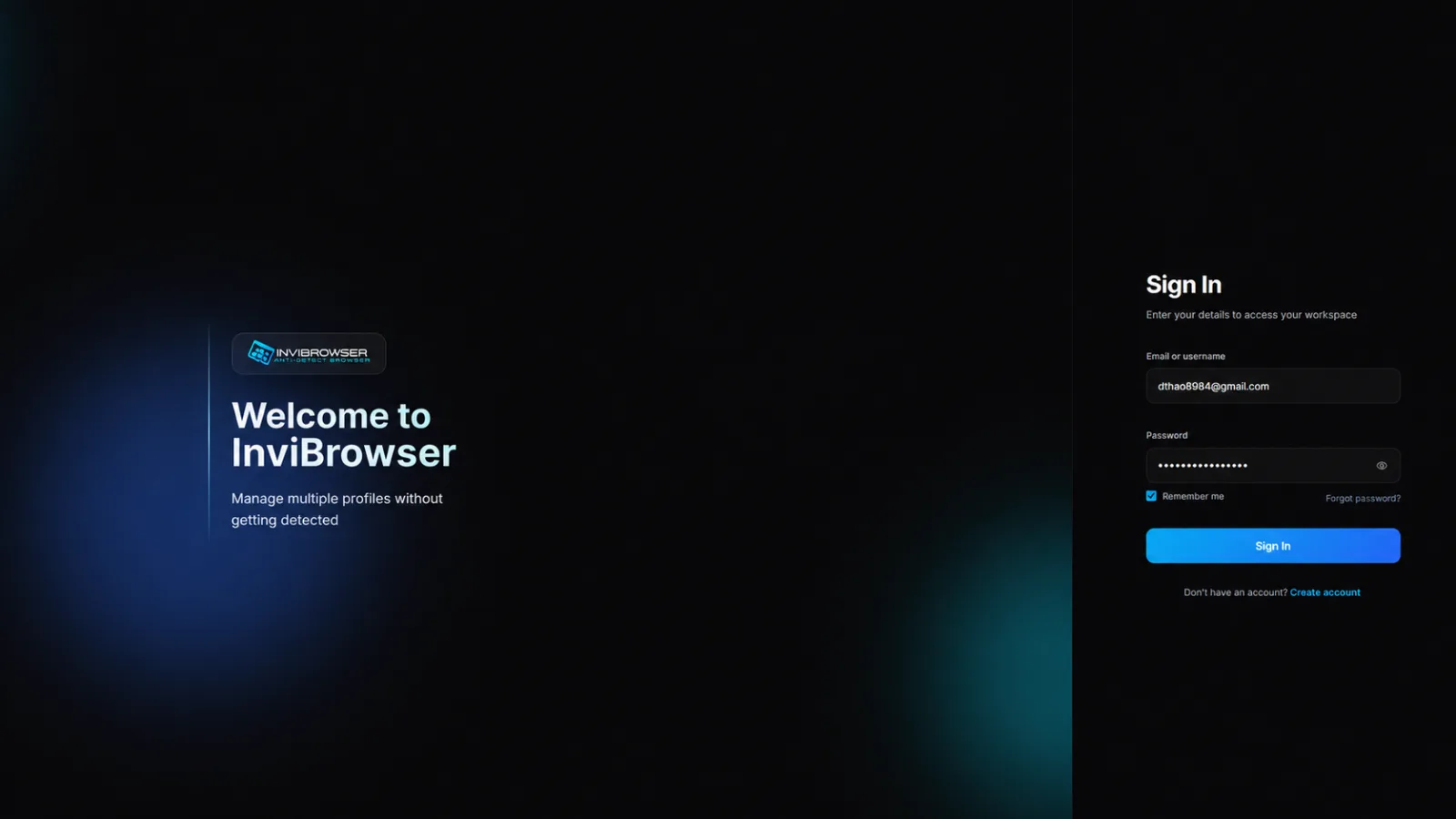
After successful login, the account's Cookie and Session are maintained within the Profile environment.
Thus, when assigning tasks to team members, the team does not necessarily have to start by sending usernames and passwords.
Step 3: Create a member account in the Workspace
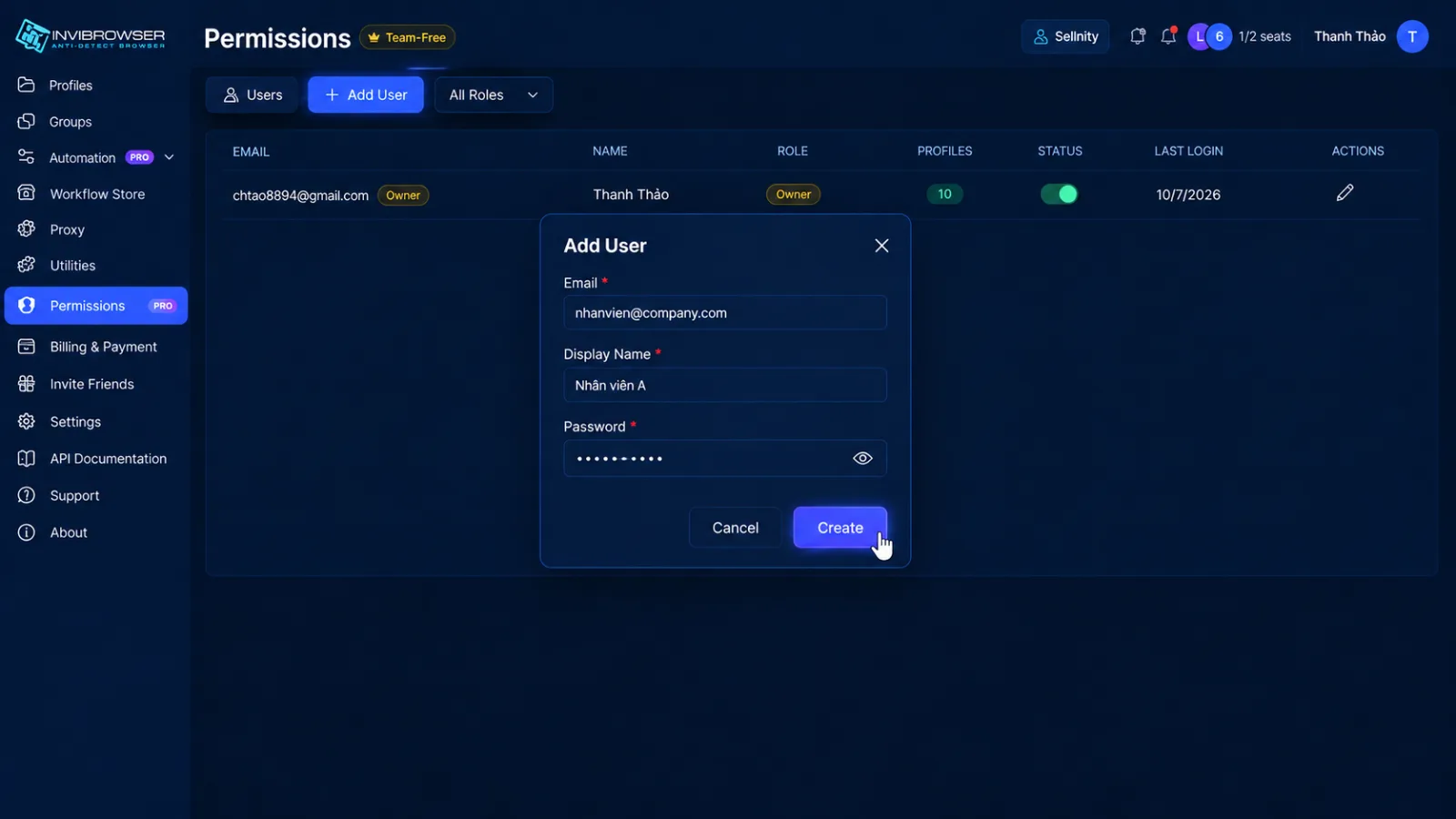
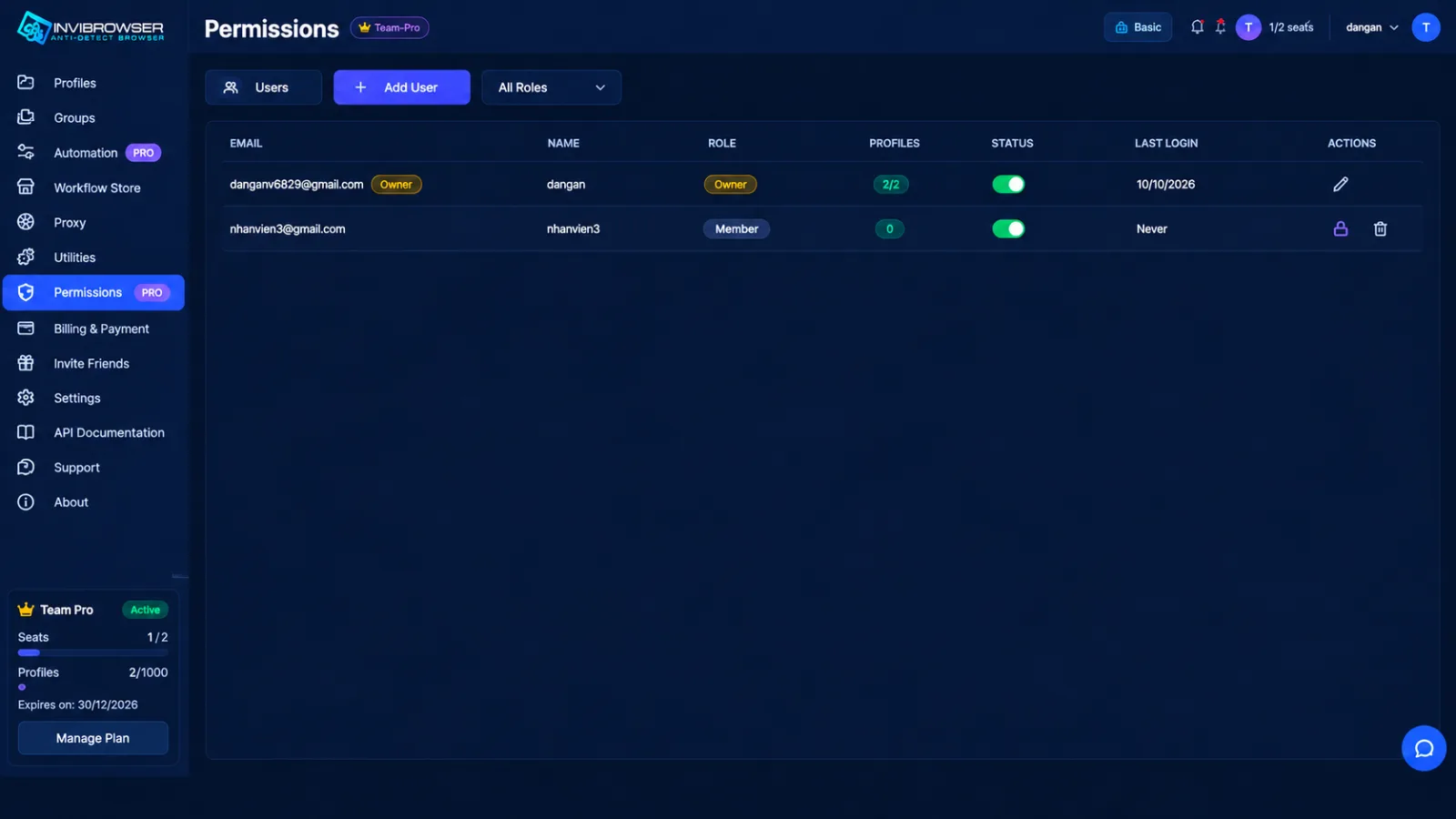
After preparing the Profiles that need to be shared, the administrator proceeds to create accounts for members in the Workspace.
Implementation:
Workspace → Permissions → Add user
Here, the Admin enters the following information:
-
Member email.
-
Display name.
-
Workspace login password.
Once completed, the employee account will be added to the system so that access permissions can continue to be configured.
Creating separate accounts for each member makes it easier for the team to manage, instead of having multiple people share a single admin account.
Step 4: Set access permissions for members
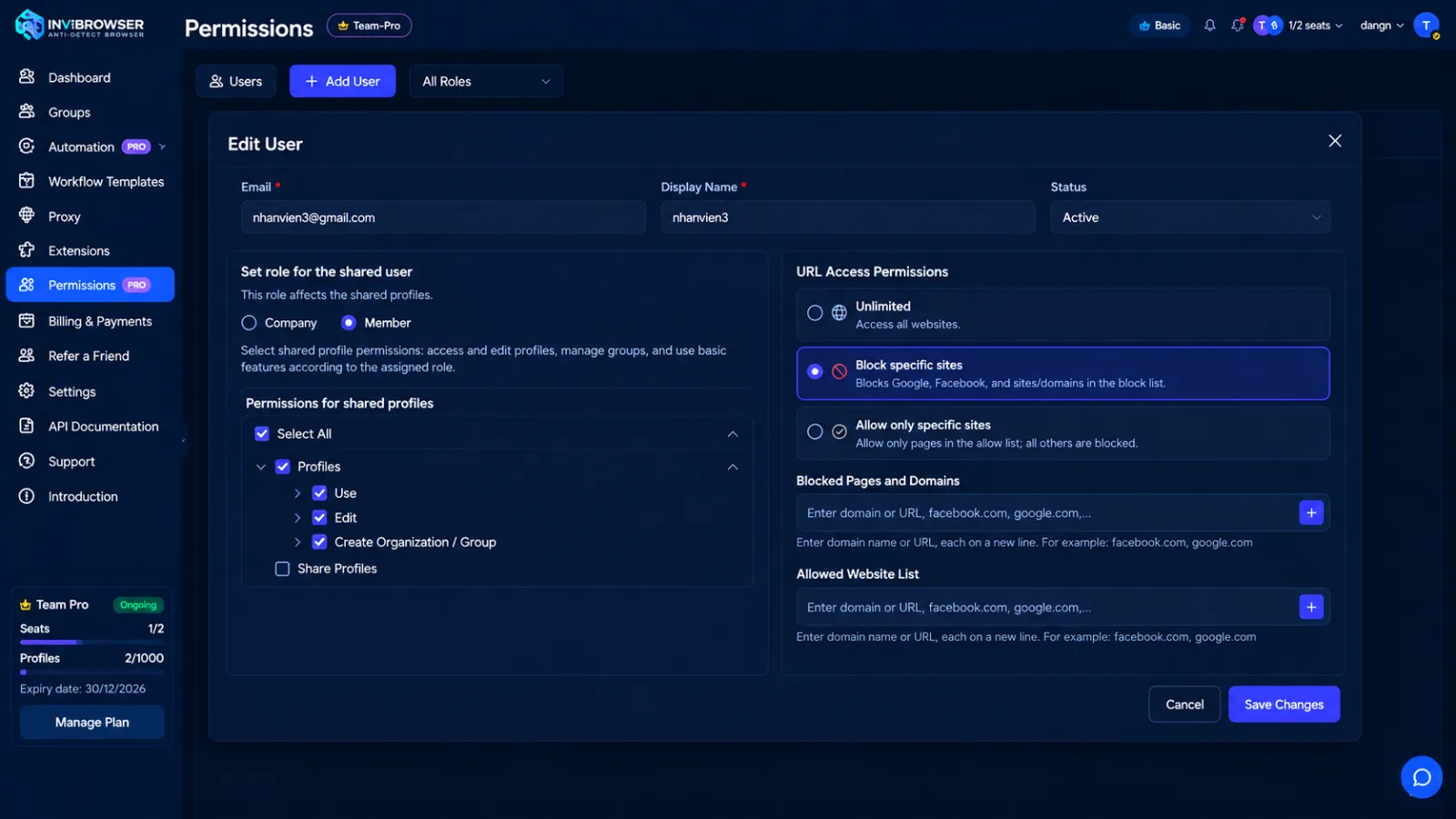
After creating member accounts in the Workspace, you can set permissions to define what each person is allowed to do on the shared Profiles.
Rather than granting full administrative privileges to all members, InviBrowser allows permissions to be assigned according to each user's role and scope of work.
Some permissions that can be set:
-
Use Profile: Allows members to open and work on assigned Profiles.
-
Edit Profile: Allows you to change Profile settings as needed.
-
Proxy and Fingerprint Management: Only granted to personnel responsible for browser environment configuration.
-
Share, export, or delete Profiles: This should be restricted to Admins or managers to prevent changes outside the scope of work.
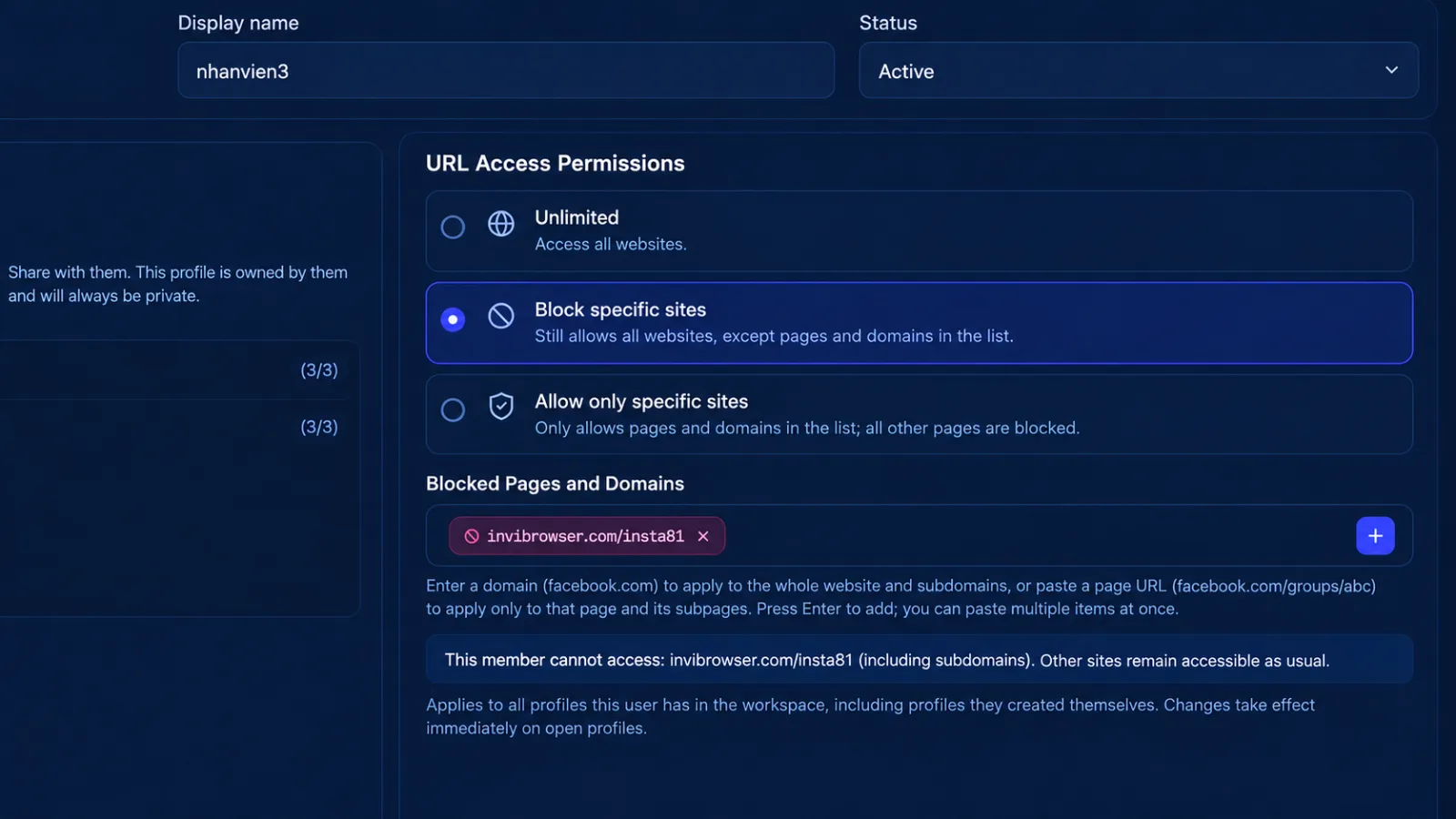
In addition to profile operation permissions, InviBrowser supports URL Access Permission to control which websites members are allowed to access.
There are 3 modes:
-
Unrestricted: Access to all websites.
-
Block certain pages: Block the URLs or domain names in the list.
-
Allow only specific pages: Only access pre-configured websites.
As a result, managers can clearly identify:
-
Which Profile is being used by the AI.
-
What operations are permitted to be performed.
-
Which links have been accessed.
Role-based access rights help the team reduce unnecessary operations, mitigate risks when multiple people work together, and make management easier as the number of accounts grows.
Step 5: Share the Profile to be used
Go to the Records section, select the Profile you need to assign → tap Share → select the corresponding staff member → tap Share to complete the process.
Once granted permissions, members can access and work on assigned Profiles within the predefined scope.
Sharing Profiles helps the team manage accounts for each separate environment, instead of having to share full access rights or login credentials with multiple members.
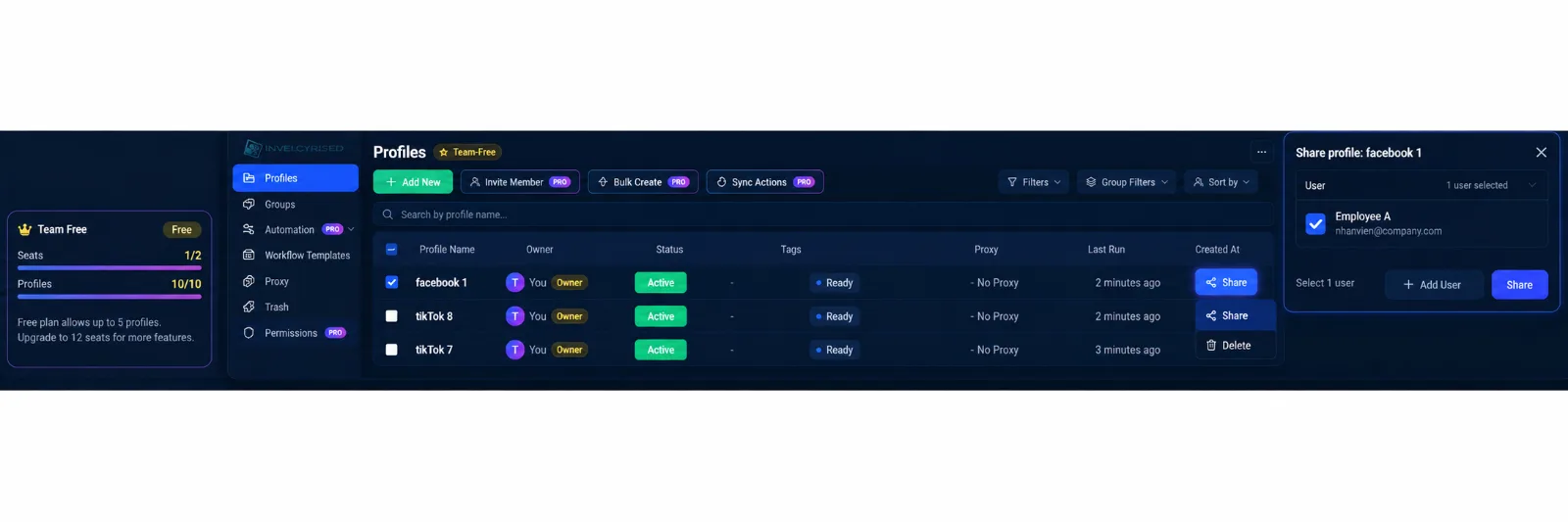
This way, employees can work on the assigned Profiles without needing to share the original account login credentials. You can also restrict permissions to prevent changes that are unrelated to their work.
Conclusion
Sharing Profiles instead of directly sending passwords helps the team reduce the number of people who need to know login credentials, minimizes the need for repeated logins during handovers, and allows for clearer, per-employee account management.
However, not sharing passwords does not equate to absolute security. Teams still need to combine access permissions, two-factor authentication, and login session management to protect accounts.
With InviBrowser, teams can centrally organize browser profiles, proxies, and login environments, thereby establishing a more convenient and controllable account handover process.