
What Is a Browser Fingerprint?
What is a browser fingerprint? Learn how websites collect it, how it works, how it affects your privacy, and how to limit browser fingerprint collection.
Every time you visit a website, your browser sends out a range of information so the site can display content correctly and run smoothly. Besides familiar data such as your IP address or cookies, a website can also collect a set of details about your browser and device. This collection of information is called a Browser Fingerprint.
A browser fingerprint is not a data file stored on your computer like a cookie. Instead, it is generated from many characteristics of the browser and device in use. When combined, this information can form a "fingerprint" that helps a website identify your browsing environment.
Today, browser fingerprints are used quite widely across many areas, such as:
- Authenticating users and strengthening account security.
- Detecting abnormal activity or signs of fraud.
- Analyzing traffic and optimizing the user experience.
- Testing websites across many different browser configurations.
- Managing multiple browser environments in antidetect browser tools.
This is why browser fingerprints are receiving more and more attention, especially from people working in advertising, e-commerce, software testing (QA), or those who need to manage many accounts on the same device.

How Does a Browser Fingerprint Work?
To understand how a browser fingerprint works, you first need to know that every browser has its own identifying characteristics, formed from the device, operating system, and usage environment. These characteristics act like a "digital fingerprint" that helps a website distinguish between different browsers when users visit.
Each time you visit a website, your browser automatically sends certain information about your device and browsing environment so the site can operate correctly. This data helps the website know how to display content suited to your device.
For example:
- Screen size and resolution help the website adjust its display layout.
- The browser language helps the website choose the appropriate language.
- The operating system and browser version help optimize compatibility.
- Hardware information such as the GPU can be used to analyze graphics processing capability.
Initially, this data only served to help websites operate more accurately. However, when collected and analyzed together, it can form a distinct profile describing the user's browser environment. This profile is called a browser fingerprint.
What makes a browser fingerprint special is that it does not rely on a single piece of information. Instead, the system combines dozens of small factors to create a relatively unique identifier for each browser.
For example, two people both using Google Chrome on Windows 11 can still have different browser fingerprints if their devices differ in:
- Graphics card (GPU).
- Screen resolution.
- Font list.
- Browser configuration.
- Language or timezone.
- Hardware and software settings.
The Process of Creating a Browser Fingerprint
1. Collecting information from the browser
When a user visits a website, the system can use technologies such as JavaScript to gather data about the browser and device. This information is known as fingerprint signals.
2. Analyzing and combining data
The collected data is aggregated into a technical profile. Each individual factor may not be enough to identify a user, but when many factors are combined at once, the accuracy of identification increases significantly.
3. Comparing fingerprints across visits
When a user returns to a website, the system can compare the current browser fingerprint with previously stored data. If the parameters are similar, the website can recognize this as the same browser environment.
Because it can identify based on many different factors, a browser fingerprint can help a website detect duplicate browsing environments, even when the user has cleared cookies or uses several different accounts on the same device.
For areas such as MMO, e-commerce, or managing many online accounts, understanding how a browser fingerprint works is very important. This is also why anti detect browser tools were created: to build and manage many independent browser environments and reduce the chance of accounts being linked through their browser fingerprints.
What Information Does a Browser Fingerprint Include?
To create a browser fingerprint, a website does not rely on a single piece of information but collects many different data points related to the browser, device, and browsing environment.
Each individual piece of information may not be enough to identify a specific user. However, when dozens of factors are combined, a website can create a relatively unique technical profile for each browser.
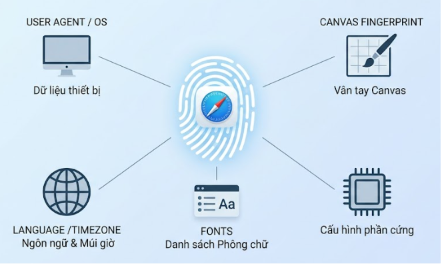
The data commonly used to create a browser fingerprint includes:
- Browser information.
- Operating system.
- Screen resolution.
- Canvas fingerprint.
- WebGL fingerprint.
- Audio fingerprint.
- Fonts.
- Timezone and language.
- Hardware information.
User Agent
The User Agent is one of the most basic components in the browser fingerprinting process. The User Agent is a string of information that the browser sends to a website to describe the current browsing environment.
This information usually includes:
- Browser name.
- Browser version.
- Operating system.
- Type of device in use.
For example, a device using:
- Google Chrome on Windows 11.
- Safari on macOS.
- Chrome on Android.
Although the User Agent cannot precisely identify an individual, when combined with other data such as GPU, screen, or fonts, it becomes an important part of creating a browser fingerprint.
Operating System
The operating system is the information describing the software platform a device runs on, helping a website distinguish between different browsing environments during fingerprint creation.
Common operating systems today include:
- Windows.
- macOS.
- Linux.
- Android.
- iOS.
In addition to identifying the type of operating system, some systems can also analyze the specific version, for example:
- Windows 10.
- Windows 11.
- macOS Sonoma.
- Android 15.
Two people both using Google Chrome, but one on Windows 11 and one on macOS, will generate two different browser fingerprints.
This is because the operating system affects many other factors, such as:
- How the browser processes graphics.
- Default fonts.
- How content is rendered.
- Hardware configuration.
Screen Resolution
Screen resolution is a parameter that reflects a device's display size and is one of the factors used to distinguish between different browser environments.
A website can collect information such as:
- Screen width.
- Screen height.
- Device Pixel Ratio.
- Browser viewport size.
The original purpose of collecting this data is to help websites optimize their display layout, for example:
- A computer with a Full HD screen.
- A laptop with a Retina display.
- A phone in portrait orientation.
All of these produce different display results. When combined with other information, screen resolution becomes a factor that helps a website distinguish visiting devices.
Canvas Fingerprint
Canvas Fingerprint is one of the key techniques in browser fingerprinting. This method uses HTML5 Canvas technology to examine how a browser processes images.
Specifically, a website can ask the browser to generate a certain image or graphic through Canvas.
Even when using the same browser, the rendering result can differ due to variations in:
- Graphics card (GPU).
- Graphics driver.
- Operating system.
- How the browser processes images.
These very small differences form a unique value that is used as part of the browser fingerprint.
WebGL Fingerprint
WebGL Fingerprint is a method of collecting information related to a device's 3D graphics processing capability through WebGL technology.
Through WebGL, a website can recognize certain characteristics such as:
- GPU type.
- Graphics card manufacturer.
- Graphics driver.
- WebGL support capability.
Two computers both running Chrome but where:
- One uses an NVIDIA GPU.
- One uses Intel Graphics.
can produce different fingerprints because their graphics processing capabilities are not the same.
Audio Fingerprint
Audio Fingerprint is a technique that uses differences in how a device processes audio signals to add more identifying data to the browser fingerprint.
A website can analyze the differences in how a device processes audio signals.
The influencing factors include:
- Audio hardware.
- Driver.
- System configuration.
- Browser.
Although this difference is very small and users hardly notice it, it can still become a signal in the browser identification process.
Fonts (Font Fingerprint)
Font Fingerprint is an identification method based on the list of fonts installed on a device, helping a website create an additional signal to distinguish browsing environments.
Each computer may have a different set of fonts depending on:
- The operating system.
- Installed software.
- The user's line of work.
A design computer may have many specialized fonts such as Adobe Fonts, design fonts, or commercial fonts, while a typical computer only has the default fonts.
This difference creates an additional signal that helps a website identify the browsing environment.
Timezone and Language
Timezone and Language are information about the browser's timezone, language, and regional settings, used as part of the data in creating a browser fingerprint.
This includes:
- Timezone.
- Browser language.
- System language.
- Date format.
For example, a browser with the language set to Vietnamese and timezone GMT+7 will produce a different fingerprint from a browser with the language set to English and timezone US.
Hardware Information (CPU, RAM, GPU...)
Some hardware information can also be used to build a browser fingerprint.
Common data includes:
- Number of CPU cores.
- Amount of RAM.
- GPU.
- Graphics processing capability.
This information helps a website better understand the environment of the device accessing it.
However, not every website has access to all hardware information. The extent of collection depends on the browser, security settings, and the permissions granted.
What Is a Browser Fingerprint Used For?
A browser fingerprint is used not only to identify browsers but also plays an important role in security, fraud prevention, behavior analysis, and managing online browsing environments.
Initially, websites used browser fingerprints to improve the user experience, for example by optimizing the interface for each device or remembering the browsing environment. However, with its ability to identify devices based on many different factors, this technology is increasingly applied across many fields.
Some common applications of browser fingerprinting include:
Strengthening Account Security
A browser fingerprint is used to verify the login device and detect abnormal activity in order to protect user accounts.
When a user logs in to a platform, the system can create a fingerprint based on information such as:
- The browser in use.
- The operating system.
- The accessing device.
- Hardware characteristics.
- Login location and environment.
If a login is detected with a fingerprint that differs greatly from before, the system can request additional verification to ensure it is the legitimate owner.
For example, an account that regularly logs in with Chrome on Windows in Vietnam. If a new fingerprint suddenly appears from a different device or an unusual environment, the platform may require:
- Entering a verification code.
- Confirming identity.
- Additional security checks.
This helps reduce the risk of account loss due to stolen login credentials.
Fraud Detection
A browser fingerprint is a tool that helps online platforms detect fraudulent behavior by identifying browsing environments with abnormal signs.
E-commerce systems, banks, or advertising platforms often use fingerprints combined with other data to detect:
- Automated bots.
- Fake visits.
- Spam behavior.
- Abnormal creation of many accounts.
- Activity showing signs of fraud.
For example, a person creates a series of accounts on the same device. Even though each account uses a different email, the system can still detect the connection if the accounts share many similarities in:
- Browser fingerprint.
- Device used.
- Browser environment.
Software Testing (QA Testing)
In software development, browser fingerprints are used to test how a website or application performs across many different environments.
Developers and testing teams can use fingerprint data to simulate many different devices, browsers, and configurations.
For example, a website needs to ensure it works well on:
- Chrome Windows.
- Safari macOS.
- Firefox Linux.
- Browsers on phones.
Testing across multiple environments helps detect issues related to:
- Display layout.
- Page load speed.
- Compatibility.
- Website functionality.
Ad Verification
A browser fingerprint is used in advertising to verify traffic quality and detect ad fraud.
Advertisers can use fingerprints to check:
- Whether clicks come from real users.
- Whether traffic comes from bots or invalid sources.
- Whether one person is generating many fake interactions.
For example, an ad campaign receives thousands of clicks in a short period, but most come from the same browser environment showing abnormal signs. The system can assess this as low-quality traffic.
User Behavior Analysis
A browser fingerprint can be combined with data analytics technologies to understand how users interact with a website.
Businesses can use this data to:
- Analyze common access devices.
- Optimize the user experience.
- Improve the website interface.
- Personalize content.
For example, if most users access the website via mobile devices, a business may prioritize optimizing the mobile interface to improve the experience.
However, using fingerprints for tracking purposes must comply with privacy and data protection regulations.
Managing Multiple Browser Environments
In the fields of MMO, e-commerce, and running multiple accounts, browser fingerprints attract attention because they can affect the ability to link accounts together.
Online platforms can use fingerprints to identify accounts operating in the same environment.
For example, a person managing many accounts with the same ordinary browser can produce identical signals such as:
- The same device.
- The same operating system.
- The same browser configuration.
- The same fingerprint.
This allows platforms to assess the accounts as being related to one another.
How to Limit Websites from Collecting Your Browser Fingerprint?
Although browser fingerprinting is a common technique that helps websites identify devices and improve security, users can still apply several methods to limit the amount of information collected and strengthen their privacy when browsing the Internet.
Unlike cookies, which can be easily deleted, a browser fingerprint is formed from many factors related to the browser, operating system, and hardware. Therefore, limiting a fingerprint is not as simple as clearing browser data; it requires controlling how the browser provides information to websites.
Below are some common ways to reduce the risk of being tracked through a browser fingerprint.
Use a Privacy-Focused Browser
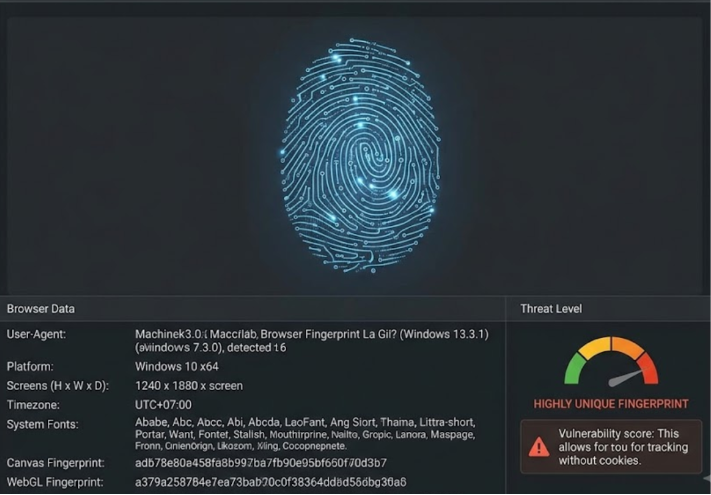
Privacy-focused browsers are designed to reduce the collection of tracking data and limit fingerprinting techniques from websites.
Some browsers have privacy protection features such as:
- Limiting third-party tracking cookies.
- Blocking certain tracking scripts.
- Reducing the collection of browser data.
- Controlling website access permissions.
For example, some browsers such as Firefox or Tor Browser offer advanced security options that help users better control what information is shared during browsing.
However, note that using a privacy browser does not mean completely eliminating a browser fingerprint. A website can still recognize some technical characteristics of the device if the user does not change the browser environment.
Avoid Installing Too Many Extensions
Browser extensions can alter browser characteristics and create additional signals that help a website identify the browsing environment.
Each installed extension can affect:
- Browser configuration.
- Data access permissions.
- How a website interacts with the browser.
- The parameters the browser provides.
For example, a browser with many extensions for content editing, password management, or marketing can have a different fingerprint from a freshly installed browser.
To limit the creation of additional identifying signals, users should:
- Install only the extensions that are truly necessary.
- Remove extensions that are no longer in use.
- Check access permissions before installing a new extension.
Update Your Browser Regularly
Updating your browser regularly helps improve security and adds privacy protection mechanisms against new tracking methods.
New browser versions are usually updated with fixes for:
- Security vulnerabilities.
- Cookie management mechanisms.
- Privacy policies.
- The ability to control JavaScript and tracking.
In addition, using a newer browser version also helps reduce the risk of being exploited through old vulnerabilities.
Users should:
- Enable automatic updates.
- Avoid using browser versions that are too old.
- Periodically review privacy settings.
Disable or Limit JavaScript When Needed
JavaScript is one of the main technologies websites use to collect many signals related to a browser fingerprint.
Through JavaScript, a website can access information such as:
- Canvas fingerprint.
- WebGL fingerprint.
- Browser information.
- Some hardware characteristics.
Therefore, limiting JavaScript can reduce the amount of data a website collects.
However, JavaScript is also an important component that helps many websites function normally. If you disable JavaScript entirely, you may encounter issues such as:
- Websites not displaying fully.
- Some functions not working.
- A limited browsing experience.
For this reason, this method is usually suitable when visiting untrusted websites or when a user wants to increase privacy in certain specific situations.
Using an Anti Detect Browser to Manage Browser Fingerprints
An anti detect browser is a specialized type of browser designed to create and manage many separate browser environments, helping users control the information that makes up a browser fingerprint.
Unlike ordinary browsers such as Chrome or Edge, an anti detect browser allows users to create many independent browser profiles. Each profile can have its own environment settings, such as:
- User Agent.
- Operating system.
- Canvas Fingerprint.
- WebGL Fingerprint.
- Timezone.
- Language.
- Hardware parameters.
- Proxy/IP.
This helps prevent multiple accounts from sharing the same browser environment and producing identical fingerprint signals.
Using InviBrowser to Manage Browser Fingerprints
InviBrowser is an anti detect browser that helps users create, manage, and operate many independent browser profiles, each with its own fingerprint settings.
Instead of using a single browser for all online activity, InviBrowser lets users separate each account into its own browser environment.
This is especially useful for people working in:
- MMO.
- Affiliate Marketing.
- E-commerce.
- Digital Marketing.
- Agencies managing many accounts.
Which Components of a Browser Fingerprint Does InviBrowser Help Control?
Each profile on InviBrowser can be set up with its own environment parameters, such as:
Browser and User Agent
Users can create profiles with different browser configurations, giving each environment its own distinct characteristics.
Canvas Fingerprint
InviBrowser supports managing parameters related to Canvas fingerprint, helping control how the browser is identified when visiting websites.
WebGL Fingerprint
Information related to graphics processing capability, such as GPU and WebGL, can be configured for each profile.
Timezone and Language
Each profile can set its own timezone and language, suited to a specific market or purpose, for example:
- A profile for the US market using English + US Timezone.
- A profile for the Vietnamese market using Vietnamese + GMT+7.
Cookies, Cache, and Browser Data
Beyond fingerprints, InviBrowser also helps separate browser data between profiles.
Each profile has:
- Its own cookies.
- Its own cache.
- Its own browsing history.
- Its own login session.
This makes it easy for users to manage each account without mixing data.
Why Should You Use InviBrowser When Managing Multiple Accounts?
When using an ordinary browser, multiple accounts may share the same browsing environment, making management difficult.
InviBrowser helps solve this problem by:
- Creating many independent browser profiles.
- Managing fingerprints per profile.
- Separating browser data.
- Optimizing multi-account workflows.
For sellers, MMO marketers, or agencies, clearly separating work environments saves management time and helps build a more efficient workflow.
Conclusion
A browser fingerprint is a technology that helps websites identify and distinguish browsing environments based on many factors such as the browser, operating system, device, hardware, and related settings. Unlike cookies, a browser fingerprint is created from a combination of many technical data points, making it harder to change or completely erase.
Understanding what a browser fingerprint is, how it works, and how to limit fingerprint collection helps users enhance their privacy when using the Internet, while also supporting more effective account management.
For MMO, sellers, and businesses that need to run many accounts, an anti detect browser like InviBrowser is a solution that helps create and manage separate browser environments, control browser fingerprints, and optimize workflows across multiple profiles.
Read more articles on the InviBrowser Blog.