
Guide to creating multiple profiles in InviBrowser
When you only need one or two Browser Profiles, you can create each profile manually. However, if you have to prepare dozens of environments for multiple
When you only need one or two Browser Profiles, you can create each profile manually. However, if you have to prepare dozens of environments for multiple accounts or projects, repeating the same process over and over again will take up a significant amount of time.
The Bulk Creation feature on InviBrowser allows you to set up multiple profiles at once, from naming, grouping and tagging to proxy and fingerprint configurations.
Start your free InviBrowser experience to create and manage multiple Browser Profiles in a single interface.
What is bulk profile creation on InviBrowser?
Bulk Profile Creation is a feature designed for scenarios where you need to create multiple Browser Profiles simultaneously, instead of opening the creation screen and configuring each profile individually.
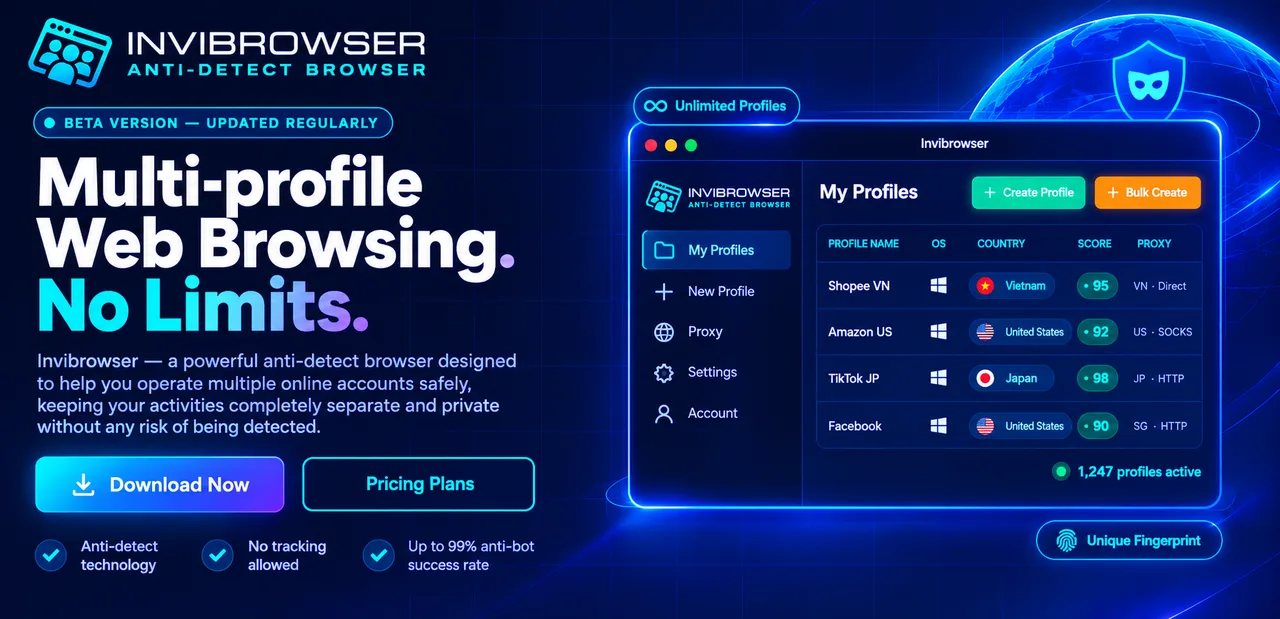
This feature is particularly useful when you need to:
-
Prepare multiple profiles for the same project.
-
Divide profiles by group or member.
-
Tag to categorize profiles.
-
Assign proxies to multiple profiles.
-
Create multiple environments with separate fingerprint configurations.
-
Standardize the naming convention from the very beginning.
If you are not yet familiar with how a profile works, we recommend that you first review the guide to creating and managing profiles on InviBrowser to understand the basic settings.
When should I use the Bulk Create feature?
It is not always necessary to create multiple profiles at the same time.
If you are new to InviBrowser or only managing a few accounts, creating profiles one by one will make it easier for you to check each setting.
Bulk creation is more suitable when:
-
The number of profiles that need to be created is starting to increase.
-
Many profiles use the same grouping method.
-
You have already prepared the proxy list.
-
Profiles must be named according to a unified naming convention.
-
To reduce the time spent repeating identical configuration steps.
For example, instead of creating TikTok 01, TikTok 02, TikTok 03, etc. , one by one, you can prepare an entire group of profiles in a single workflow.
Guide to creating multiple profiles in InviBrowser
Watch the detailed tutorial video here: https://youtu.be/5M71SOfZ1B0?
Step 1: Open the Profile section
Log in to InviBrowser and go to the Profile section.
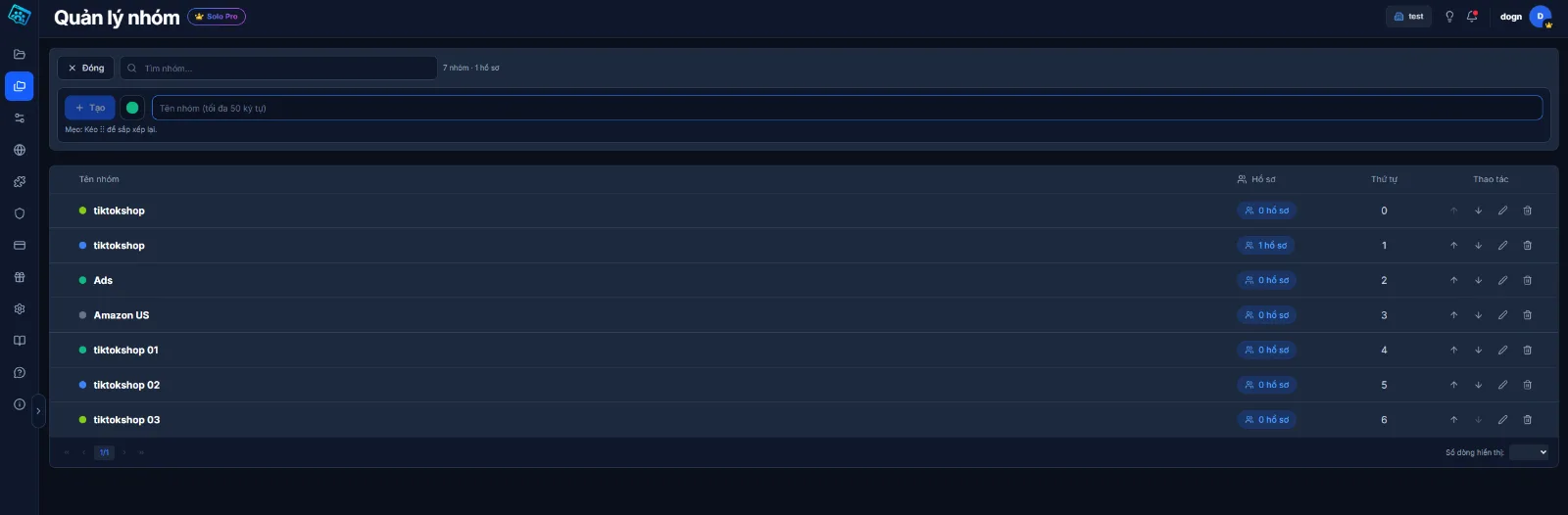
This is the area where the list of Browser Profiles is displayed, along with management information such as name, group, tags, proxy, and status.
In the toolbar, select Bulk Create to start setting up multiple profiles.
Step 2: Set up the Profile naming convention
When creating multiple profiles, the name is the first element that should be standardized.
Rather than using arbitrary names, you can adopt an easily recognizable naming structure, for example:
-
Facebook 01
-
Facebook 02
-
Facebook 03
Or broken down by project:
-
Project A - 01
-
Project A - 02
-
Project A - 03
A clear naming convention will make it easier for you to search, filter, and hand over profiles when your list starts to have dozens or hundreds of records.
Step 3: Assign groups to Profiles
Next, select Group that is appropriate for the profiles being created.
Groups can be used to segment Browser Profiles by:
-
Project.
-
Customer.
-
Team.
-
Responsible staff member.
-
The platform is operational.
For example, all profiles serving a particular customer can be grouped together for easier filtering and management later on.
If no suitable group exists, you should create a group structure before expanding the number of profiles to avoid a fragmented list.
Step 4: Add tags for more detailed categorization
In addition to groups, you can also use Tags to add an extra layer of classification.
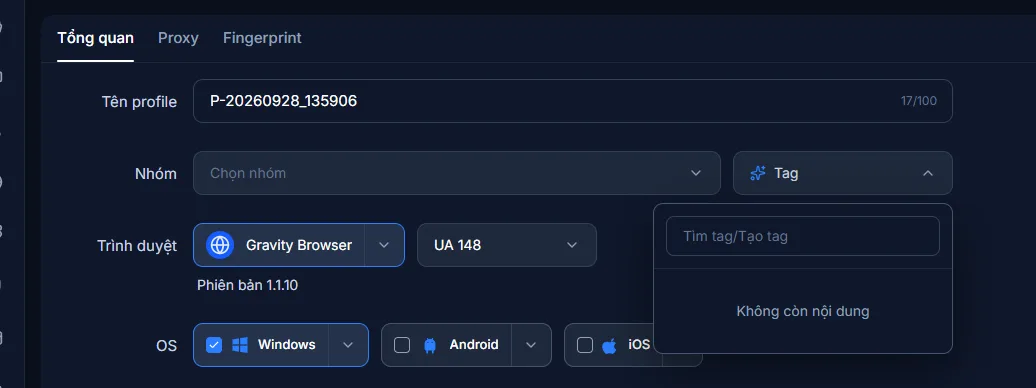
While groups are used to segment profiles according to a primary structure, tags can be more flexible.
Example:
-
Facebook
-
TikTok
-
Shopee
-
Ads
-
Content
-
Client A
A single profile can have multiple attributes at the same time, so tags help you filter faster when you need to find a specific group of profiles.
Step 5: Assign Proxies to Profiles
If the workflow uses proxies, prepare the proxy list before batch creation.
The goal is to clearly identify which proxy is used for which profile right from the setup stage, instead of creating the profiles first and then going back to edit each one individually.
Before use, you should check the proxy status to ensure that the connection information is correct.
Learn more: What is a Proxy? How Proxies Work and a Beginner's Guide to Using Proxies
The use of a proxy does not guarantee that an account will not be subject to restrictions or verification. A proxy is only one part of the access environment and must still be used in accordance with the platform's workflows and policies.
Step 6: Check the Fingerprint configuration
After setting up the profile and proxy information, proceed to check the Fingerprint section.
Browser fingerprinting can include a variety of parameters such as:
-
User-Agent.
-
Time zone.
-
Language.
-
Screen resolution.
-
Canvas.
-
WebGL.
-
WebRTC.
-
CPU and RAM.
If you are new to using InviBrowser, you don't need to manually adjust all the parameters just to create a profile.
It is important to review the configuration before creation to avoid having to make bulk edits later.
Learn more: What is Browser Fingerprint? How does browser fingerprinting work?
Step 7: Review before bulk creation
Before confirming, you should double-check all settings one more time.
Special note:
-
Profile Naming Rules.
-
The group has been selected.
-
Tags to be attached.
-
Proxies have been allocated.
-
Fingerprint.
-
Number of profiles to be created.
With bulk operations, an incorrect setting can appear across multiple profiles at the same time. Therefore, conducting a check beforehand is usually faster than fixing each profile individually after they have been created.
Step 8: Create and Test the Profile List
After reviewing the configuration, confirm Create.
Once the process is complete, return to the Profiles list to check the newly created profiles.
You should cross-reference:
-
Is the profile name in the correct order?
-
Is the profile assigned to the correct group?
-
Is the tag attached correctly?
-
Does the proxy match each profile?
-
Is the number of profiles created aligned with the requirements?
If you have assigned clear names, groups, and tags from the start, you can use the filters in the Profile section to check the list more quickly.
Create profiles one by one or in bulk?
There are different ways to meet these needs.
| Demand | Create Individual Profiles | Bulk creation |
|---|---|---|
| - Getting Started with InviBrowser | - Suitable | - Not required |
| - Create 1–2 profiles | - Suitable | - Redundant operation possible |
| - Create multiple profiles | - Takes more time | - More convenient |
| - Standardize naming conventions | - Execute each profile | - Easy to apply on a large scale uniformly |
| - Group multiple profiles | - Private settings | - More suitable |
| - Bulk Proxy Management | - Each record needs to be edited individually | - Easier to organize |
If you are just getting started, you should create a profile manually first to understand the configuration structure. Once the process is stable, you can switch to bulk creation to save time.
Some notes on creating multiple Profiles at the same time
Prepare the naming structure in advance
Naming entries as Profile 1, Profile 2 may suffice when the list is still short, but will become difficult to manage as the number grows.
A consistent naming convention should be established from the very beginning based on the platform, project, or person in charge.
Don't ignore groups and Tags
Groups and tags are not just for decorating your list.
When you have multiple profiles, these are two factors that help you quickly filter the profiles you are looking for instead of having to read each name individually.
Test the proxy before assigning it to multiple profiles
If a proxy encounters an error while being used during a bulk creation process, you may need to go back and adjust the configuration afterwards.
It is recommended to prepare and test the proxy before starting.
Double-check everything before clicking Create
Bulk creation saves time when set up correctly, but it can also lead to more rework if the initial configuration is incorrect.
Therefore, an additional review step should be conducted before creation.
Summary
The Bulk Profile Creation feature is ideal for users who have a well-defined workflow and want to cut down on the time spent manually setting up multiple browser profiles.
Before creation, you should standardize the profile names, groups, tags, proxies and fingerprints, then double-check the list immediately after the process is completed.
See also:
You can try InviBrowser for freeto create and organize multiple Browser Profiles for each project or workflow.