
What to do if the proxy is slow? Causes and solutions
Your proxy connects successfully but web pages load slowly, lag, or time out? Learn the causes of slow proxy performance and follow step-by-step instructions
Your proxy connects successfully but web pages load slowly, lag, or time out? Learn the causes of slow proxy performance and follow step-by-step instructions to troubleshoot and fix the issue.
Is your proxy still showing a successful connection, but loading websites takes a long time, operations in the Browser Profile are laggy, or timeouts occasionally occur? When encountering this situation, many people immediately change their Proxy.
However, a slow proxy is not always caused by the proxy itself. High latency, excessively distant server locations, unstable native internet connections, an unsuitable proxy type, or running too many profiles simultaneously can all affect the actual connection speed.
Start your free InviBrowser trial to manage proxies per browser profile and test your environment before deployment.
Signs that the proxy is running slow
A slow proxy does not necessarily mean that the connection is completely lost.

A proxy may still be functional, but the user experience is unstable. Some common signs include:
-
The website is taking longer than usual to load.
-
The page loads, but images or content appear slowly.
-
Login takes a long time.
-
The browser profile launches normally, but experiences lag when accessing websites.
-
Requests frequently time out.
-
The speed between uses is inconsistent.
-
Some Profiles are fast, while other Profiles using the same Proxy are slow.
If the proxy fails to connect at all, the issue is usually easier to identify. The most tricky case is when the proxy still passes the connection test but performs very slowly in actual use.
Why is the proxy still connected but running slow?
Proxy latency is too high
Latency is the time it takes for data to travel from your device to the Proxy and then onward to the target website.
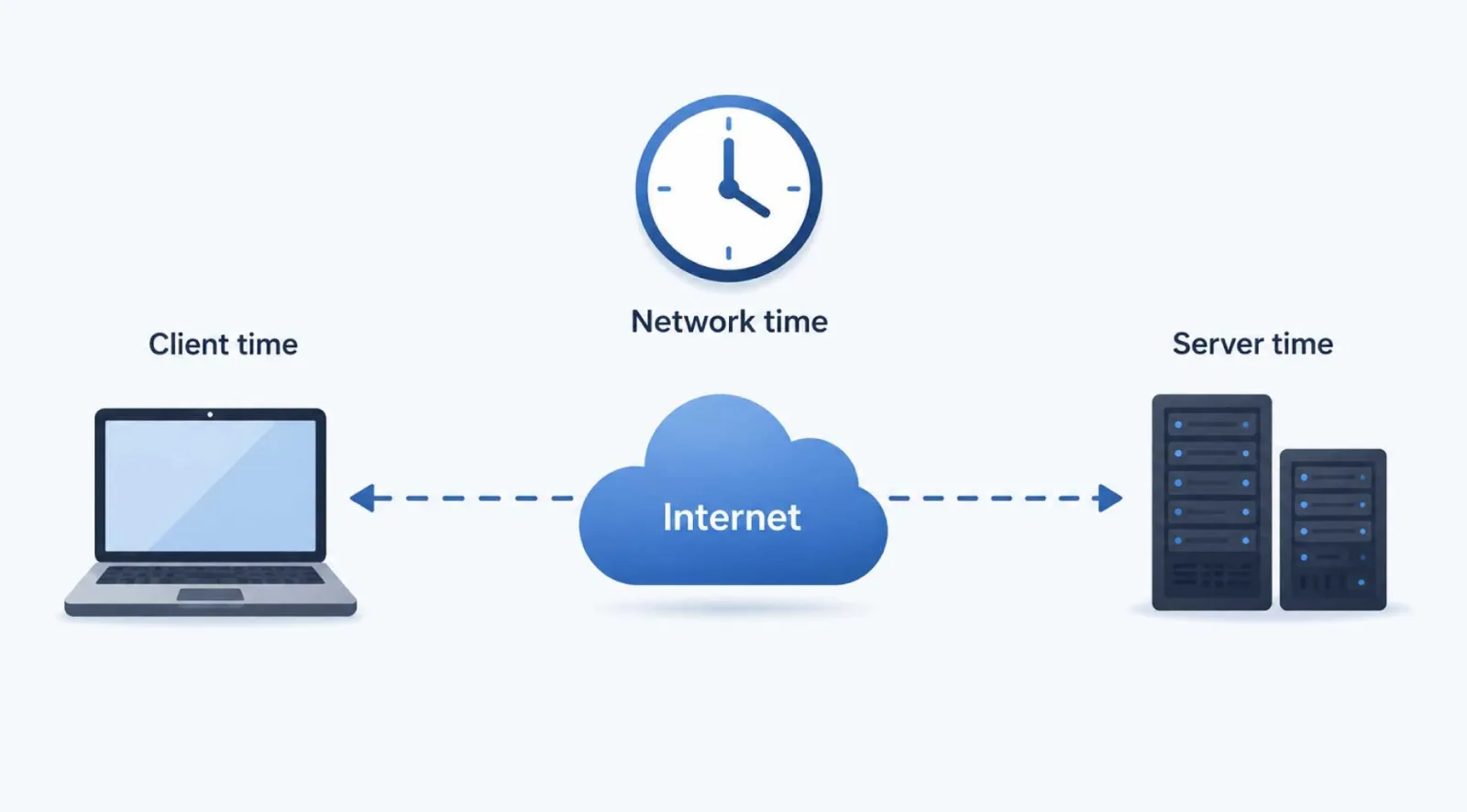
The higher the latency, the slower the response feels.
For example, when you click a link, the browser must:
Device → Proxy → Website → Proxy → Device
Therefore, even if the proxy bandwidth is not excessively low, high latency will still make the website feel sluggish or slow to respond.
This is also why you should not only check whether a proxy is working. You also need to pay attention to the actual connection quality.
Learn more: What is a Proxy? How Proxies Work and a Beginner's Guide to Using Proxies
The proxy server is too far from the access location
Geographical distance also affects latency.
For example, if you are in Vietnam but using a proxy located in the United States or Europe, the data has to travel a longer distance than it would if you used a proxy closer to your location.
This does not mean that remote proxies should never be used. In many workflows, the IP location must match the market being operated in.
However, if two proxies meet the same requirements, the one with a better connection line usually delivers a faster experience.
The proxy is overloaded or is being shared by multiple users
Not all proxies are dedicated to a single user.

With a Shared Proxy, an IP address or infrastructure can be used by multiple users at the same time. As traffic increases, speeds may decrease or become unstable.
Common symptoms include:
-
There are times when the Proxy runs fast.
-
After a while, it slows down significantly again.
-
The speed will change even if you do not modify the configuration.
If you require a more stable environment, you can consider a Proxy type that matches your workload.
Learn more: Residential Proxy vs. Datacenter Proxy: How to Choose the Right One for Your Needs
The proxy type does not match your requirements
Residential proxies and datacenter proxies differ in their IP sources and operational characteristics.
Datacenter proxies are often chosen when speed and the ability to handle a large number of requests are top priorities.
Meanwhile, residential proxies use IP addresses associated with real residential networks. Connection quality can depend more heavily on the provider, network route, and specific type of proxy.
It should not be simply assumed that residential proxies are always slow or datacenter proxies are always fast. The actual speed also depends on:
-
Supplier.
-
Server.
-
IP location.
-
Sharing level.
-
Network infrastructure.
-
Time of use.
The original internet is having issues
This is a step that is very easy to overlook.

The proxy uses your current Internet connection. If the original network is slow, experiencing packet loss, or has an unstable Wi-Fi connection, the proxy is unlikely to deliver a fast experience.
Before concluding that there is an issue with the Proxy, please try the following:
-
Disable Proxy.
-
Reopen the same website using a regular network connection.
-
Compare loading speed.
-
Check your Wi-Fi or network cable.
-
Try again at a different time.
If the website is still slow even without using a Proxy, the cause may lie with the Internet connection or the website itself.
Having too many Browser Profiles open at the same time
If you are using an antidetect browser, proxies are not the only factor that affects speed.
Each running Browser Profile can use:
-
CPU.
-
RAM.
-
Bandwidth.
-
Extension.
-
Browser tab.
-
Background processes.
When you have too many Profiles open on a device, the computer may start to slow down. Users often mistakenly assume that the proxy is lagging, when in reality the root cause is that system resources are being overloaded.
You can try closing some profiles and then test again with the same proxy.
The target website is responding slowly
If only one website is slow while others are working normally, the proxy may not necessarily be the cause.

The target website may:
-
Currently overloaded.
-
Server response is slow.
-
There are many resource-intensive elements.
-
Some requests are currently being rate-limited.
-
There is an issue with the CDN or network route.
Therefore, you should test the proxy on multiple websites before drawing a conclusion.
How to Test a Proxy Before Using It
Before concluding that a proxy is slow or adding it to your browser profile, you should check at least three key factors: whether the proxy is still active, what its response speed is, and whether its anonymity level and IP address meet your requirements.
The following tools can help you quickly test a proxy before using it.
1. ProxyScrape – Check the status, speed, and anonymity of proxies
ProxyScrape offers an online Proxy Checker tool that supports HTTP, HTTPS, SOCKS4, and SOCKS5.
Simply paste the proxy list into the tool to start the check:
-
Is the proxy still working or has it gone down?
-
Proxy Protocol.
-
Response time.
-
Anonymity level.
-
Multiple proxies at the same time.
The online version currently allows testing thousands of proxies without creating an account. ProxyScrape also notes that latency results from the online tool may differ when run directly on your machine due to different network routes.
Suitable when: You have a list of proxies and want to quickly filter out slow or non-functional proxies before importing them into Browser Profile.
2. ProxyChecker – Check Proxy Speed and Location
ProxyChecker is ideal when you want to check multiple pieces of information about a proxy in a single run.
Supported tools:
-
HTTP, HTTPS, SOCKS4, and SOCKS5.
-
Check whether the proxy is working.
-
Response time.
-
Country and city of the IP address.
-
Anonymity level.
-
Test multiple proxies at the same time.
According to the current information of the service, users can check a maximum of 100 proxies at a time and export the results to further filter the list.
Suitable when: You want to simultaneously check speed + IP location + Proxy status.
3. SSLProxies – Reference for HTTPS Proxies and Most Recent Check Time
SSLProxiesprovides a list of HTTPS proxies with the following information:
-
Country.
-
Port.
-
Anonymity level.
-
HTTPS support.
-
The most recent time the proxy was checked.
This list is updated regularly, so it can be used for reference or comparison when you need to find an HTTPS proxy for testing.
However, these are primarily public proxy lists, and it should not be assumed that every proxy appearing on the list is suitable for long-term use.
4. Free Proxy List – Quick Check of Public Proxy List
Free Proxy Listalso displays recently tested proxies along with information such as:
-
IP and Port.
-
Country.
-
Anonymity level.
-
HTTPS.
-
Most recent test time.
This list is continuously updated and can be useful when you need free proxies for quick testing or comparison with the proxies you are currently using.
Note: Free proxies typically have lower stability, are prone to overload, and their status can change rapidly. You should not rely solely on a proxy being "alive" to assess its quality.
5. Recheck the Proxy directly in the actual usage environment
Proxy Checkers help you filter out faulty or overly slow proxies, but the results on the testing website do not always match the actual speed in the Browser Profile.
After filtering the Proxy, you should still:
-
Attach the proxy to the profile.
-
Check whether the IP has been changed correctly.
-
Open the website you usually use in practice.
-
Monitor page loading speed.
-
Check the timeout status.
-
Compare with another Proxy under the same Profile.
For example, a proxy may have a good response time on Proxy Checker, but it can still be slow when accessing Facebook, TikTok, or a specific website due to the network route between the proxy and the target server.
What order should I check the proxies in?
A simple process could be:
Proxy Checker → filter out dead/slow proxies → verify IP and location → assign to Browser Profile → test on real websites → retain stable proxies.
If you are managing multiple proxies, this process helps you eliminate problematic proxies before they affect the entire operation.
After this section, you can directly transition to the "Proxy Management and Verification with InviBrowser" section. This will make the flow of the article much more natural compared to the old network/Profile verification section.
How to Test a Proxy Before Attaching It to a Browser Profile
A better approach is to test the Proxy first before integrating it into the main workflow.
You should confirm:
-
Is the proxy working?
-
Is the displayed IP address correct?
-
Does the location meet the requirements?
-
Is the response speed stable?
-
Does the proxy frequently time out?
Then, attach the proxy to the corresponding Browser Profile.
If you manage multiple accounts, this method helps avoid the situation where you only discover a group of proxies is of poor quality after creating a large number of Profiles.
Learn more: Guide to creating and managing Profiles on InviBrowser
Proxy Management with InviBrowser
When there are only one or two proxies, manual management is relatively straightforward.
However, as the number of Profiles increases, questions like "Which Profile is this Proxy assigned to? " or "Which Proxy is malfunctioning? " start to come up more frequently.
InviBrowser helps organizations manage proxies alongside browser profiles, enabling users to more clearly oversee each individual environment.
You can:
-
Assign a proxy per profile.
-
Test the proxy before using it.
-
Organize Profiles by account or project.
-
Manage multiple environments from a single interface.
-
Change the Proxy whenever needed without having to recreate the Profile from scratch.
This does not automatically make a low-quality proxy faster, but it makes the process of checking, detecting, and replacing faulty proxies more manageable.
Start your free InviBrowser trial to create browser profiles, attach proxies, and test your environment before integrating it into your main workflow.
Conclusion
Slow proxy speeds can stem from latency, server location, proxy type, the underlying internet connection, device resources, or the target website itself. Therefore, do not rush to switch proxies before checking each of these factors one by one.
If you are managing multiple Browser Profiles, InviBrowser helps you organize and test proxies per environment, making it easy to identify which Profile or Proxy is experiencing issues.
See also:
You can try InviBrowser for free to centrally manage proxies and browser profiles within the same workflow.