
How to add and restore a Facebook Business Manager account
Facebook Business Manager is a platform where businesses, agencies, and advertisers manage Pages, ad accounts, Instagram accounts, and access permissions for
Facebook Business Manager is a platform where businesses, agencies, and advertisers manage Pages, ad accounts, Instagram accounts, and access permissions for each team member.
Currently, Meta uses various names such as Meta Business Suite and Business Portfolio in its new interface. Therefore, if you no longer see the "Business Manager" label as shown in older guides, it does not necessarily mean the feature has disappeared; A wide range of business management tools have been integrated into Meta Business Suite.
Common issues arise when you need to add new users to the system, re-add ad accounts, or suddenly lose access to a Business Account you previously used.
This article will provide guidance on how to handle each specific case.
Try InviBrowser for free if you are running multiple Facebook accounts and need to manage separate login environments for each.
What is Facebook Business Manager used for?
Facebook Business Manager, now commonly appearing as Business Portfolio in Meta Business Suite, helps businesses manage assets such as:
-
Facebook Page.
-
Ad account.
-
Instagram account.
-
Catalog.
-
Other business assets.
-
Users and access permissions.
Meta also recommends that businesses add users who need to create or manage ads to the Business Portfolio and assign them the correct Pages, ad accounts, or assets they need to use.
Therefore, when we talk about "adding an account to Business Manager", it is necessary to clarify what you intend to add:
-
A user.
-
An advertising account.
-
A Page.
-
An Instagram account.
-
Or regain access to a lost Business account.
Each case will be handled differently.
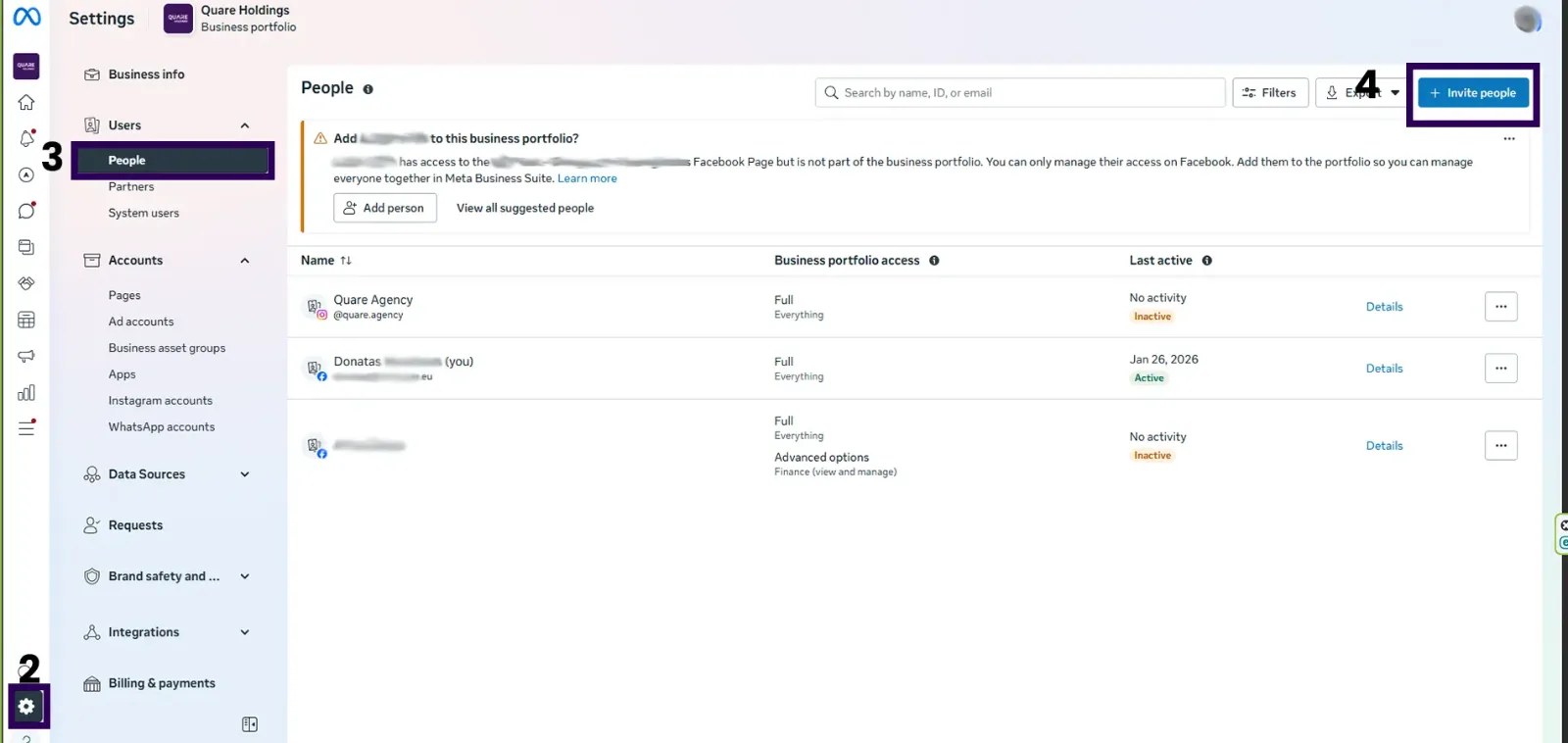
How to add people to Facebook Business Manager
If you want employees or team members to jointly manage business assets, you should not share personal Facebook account credentials with each other.
The more appropriate approach is to add that person to the Business Portfolio and grant them only the necessary permissions.
Typically, only users with full administrative control over the Business Portfolio can add other users and assign assets to them.
You can follow these steps:
Meta Business Suite → Settings → Users → People → Add people
Then:
-
Enter the email address of the person to be added.
-
Select the appropriate permission level.
-
Select the assets that the user is authorized to use.
-
Accept invitation.
You can only grant access to specific assets instead of the entire Business account.
Example:
Ads staff → Page A + Ad account A
Content Staff → Page A
Agency → Client ad account based on granted permissions
This helps prevent individuals from accumulating excessive unnecessary power.
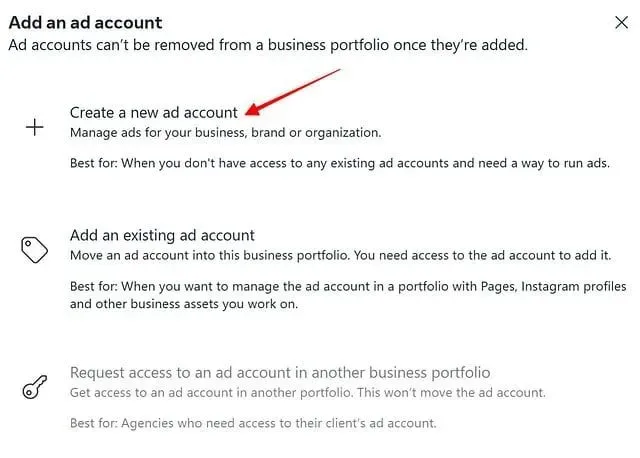
How to add an ad account to Business Manager
If you want to manage an ad account within a Business Portfolio, you first need to confirm who the account belongs to.
There are three common scenarios:
Create a new ad account
Suitable for businesses that do not yet have an advertising account and want to create a new one for use in Business Portfolio.
Add an existing ad account
Use this when the ad account is already owned by you and you want to add it to the Business Portfolio to manage it alongside Pages, Instagram, and other assets.
Request access to an ad account
Suitable for agencies or freelance ad managers.
In this case, the ad account still belongs to the client's Business Manager, and you are only granted permission to work on it.
Meta also distinguishes between adding an ad account to a Portfolio and requesting access to an account that belongs to another Portfolio.
This point is very important, because if the ad account belongs to the client, the agency should usually request access permissions instead of transferring account ownership to its own Business account.
When do you need to restore Facebook Business Manager?
Not all cases of "being unable to access Business Manager" are the same.
Some common situations include:
-
You have been removed from the Business Portfolio.
-
You no longer have administrative privileges.
-
The business is no longer appearing in the list.
-
Your personal Facebook account is restricted.
-
The advertising permissions of the personal account are restricted.
-
Your ad account has been disabled.
-
The entire Business Portfolio is restricted.
-
Meta requires identity verification or business verification.
Before submitting an appeal, please confirm exactly which entity is being restricted.
This is an important step because Meta can impose restrictions at various levels: ad accounts, personal accounts, Pages, or an entire Business Portfolio.
Case 1: Removed from Business Manager but the Business remains operational
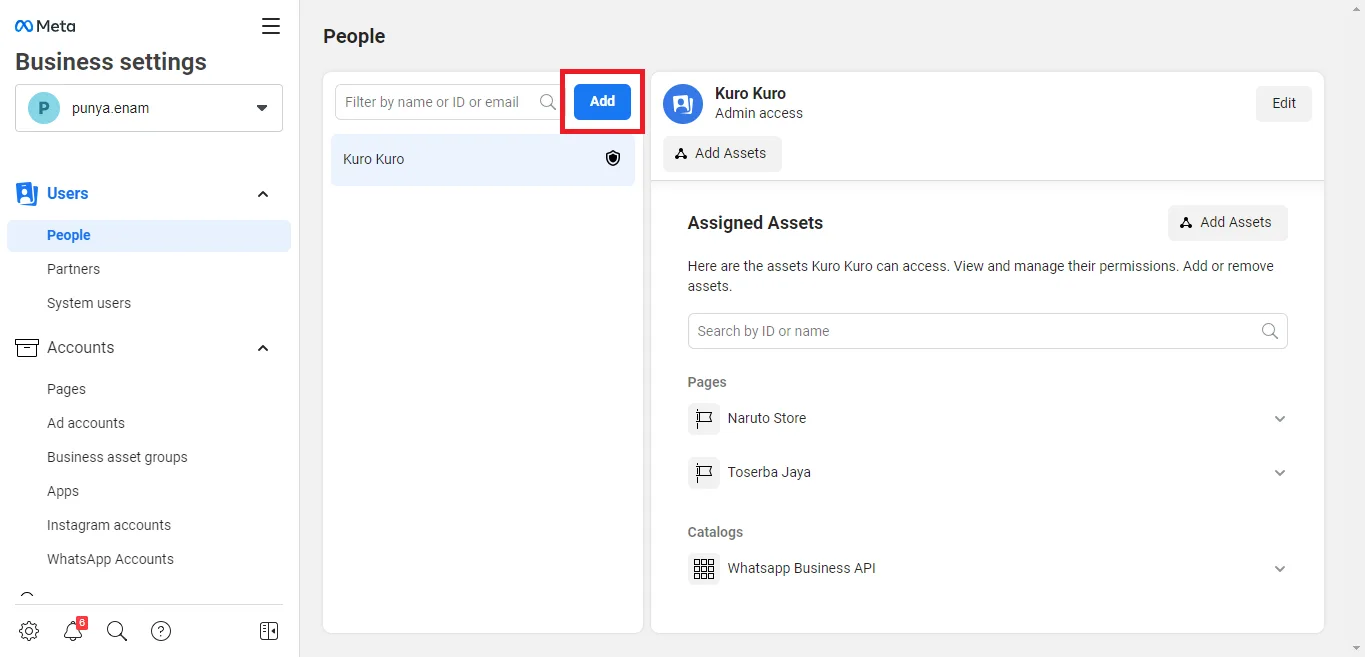
If the Business account is still active and there is another administrator with full control permissions, this is usually the easiest case to resolve.
You can request that the administrator:
-
Open the Business Portfolio settings section.
-
Go to the Users section.
-
Re-add your email/account.
-
Reclaim ownership of the Page, ad account, and other necessary assets.
If the company has multiple Admins, restoring access permissions is usually much simpler.
This is also why you should never let your entire Business rely on a single admin account.
Case 2: No one has full control anymore
A more difficult situation arises when:
-
The previous admin has resigned.
-
The Admin account has been locked.
-
No one has full authority over Business anymore.
-
Business ownership is interrupted.
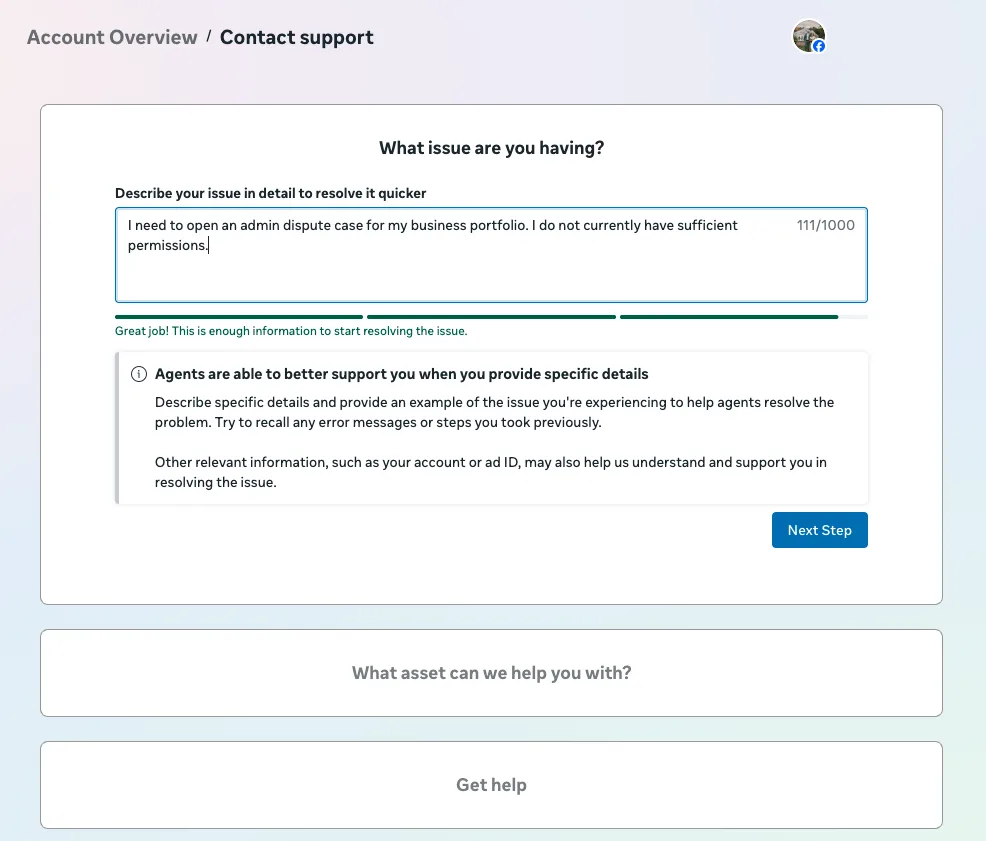
Meta has a process for requesting control of a Business in cases where no one in the organization has full access rights anymore.
When handling this case, you should prepare in advance:
-
Enterprise name.
-
ID Business Portfolio.
-
Related page.
-
Related advertising accounts.
-
Business email.
-
Business documents if requested by Meta.
-
Proof that you are authorized to represent the business.
The more consistent the information provided is, the easier the ownership verification process will be to handle.
Case 3: Restrictions on ad account or Business account
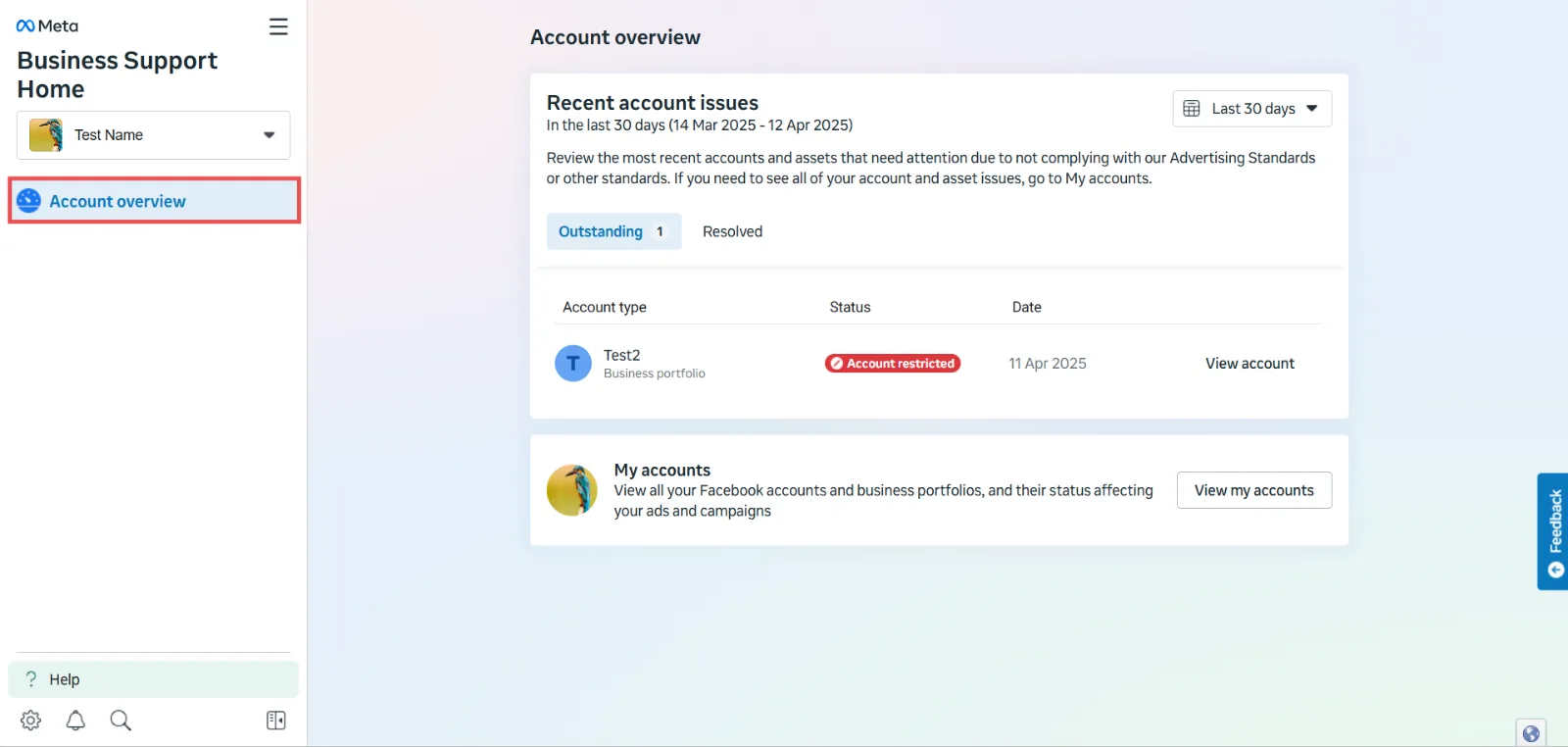
If you can still access Business but see an ad restriction notification, check within the Meta Business Support Home.
This section allows you to view the status of your Business Portfolio, ad accounts, Pages, and other assets that are experiencing issues.
Typically, the process will be:
Business Support Home → Account status overview → select restricted asset → view "What you can do"
Depending on the circumstances, Meta may require you to:
-
Verify identity.
-
Verification completed.
-
Secure your account again.
-
Request for reconsideration.
If the Request review button appears, accounts with Admin permissions can submit a request for Meta to review the decision again.
How long does it take to appeal a Facebook Business Manager restriction?
Meta says the review process for ad restrictions is usually completed within about 48 hours, though in some cases it may take longer.
It does not mean that the Business profile will definitely be restored after exactly 48 hours have passed.
The actual time also depends on:
-
Restriction type.
-
Whether identity verification is required.
-
Document requested.
-
Security status.
-
Results of policy evaluation.
Meta also limits the number of review requests that can be submitted in certain cases. Therefore, you should not repeatedly send multiple identical requests before receiving a result.
What should I do if the "Request Review" button is not visible?
The "Request review" button is not always available for all accounts.
If you don't see it, please check the following in order:
Are you an Admin?
Meta requires the submitter of a review request to have Admin rights on the relevant account or asset.
Is Meta asking you to complete any additional steps first?
Some accounts must:
-
Verify your identity.
-
Verify your email.
-
Turn on two-factor authentication.
-
Secure your account again.
-
Business verification completed.
Once completed, the review step will become available.
Has the request for review been used before?
Meta limits the number of review attempts, and the status of each asset may vary. Please check the pending and resolved items in the Business Support Home before resubmitting.
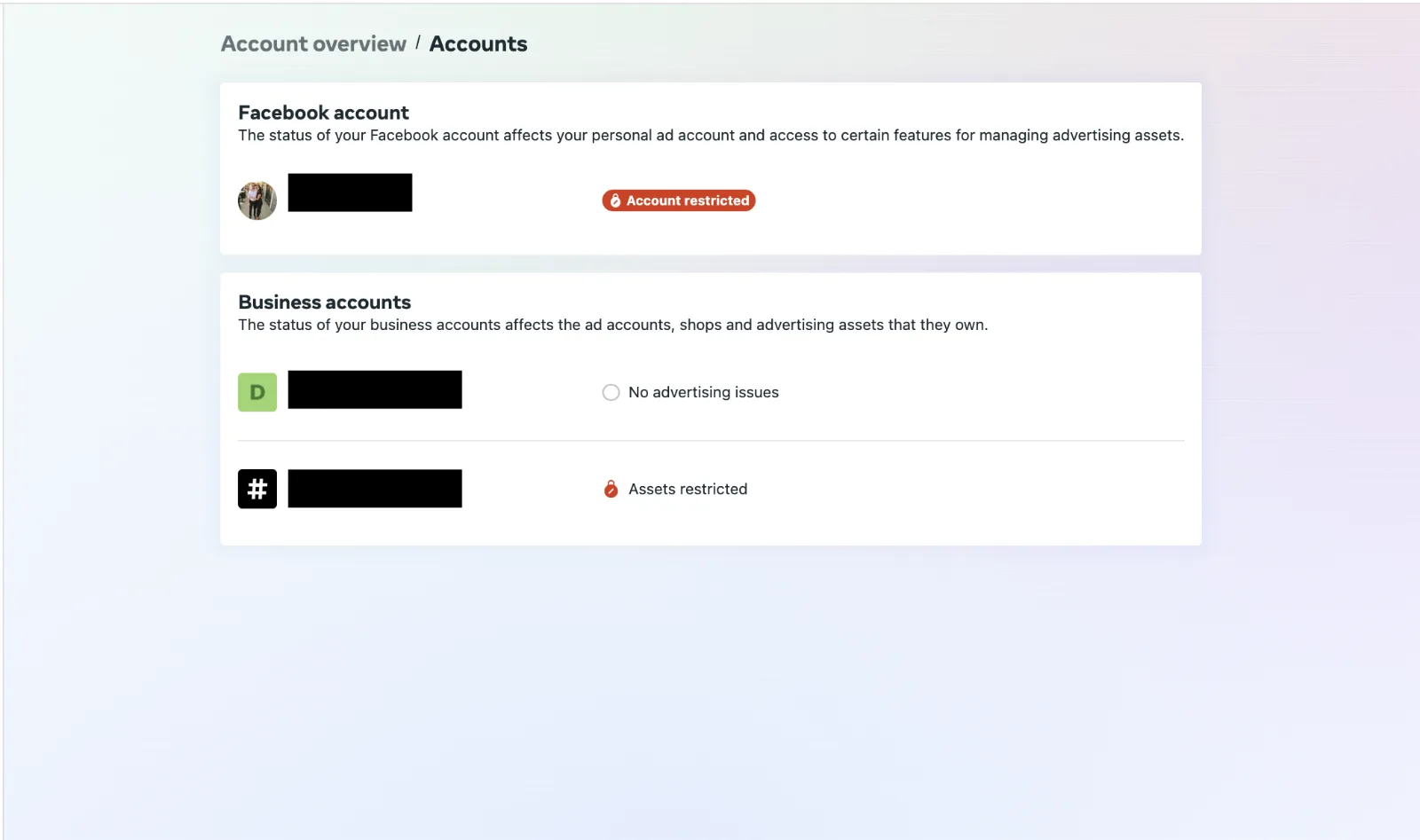
Does a restricted personal Facebook account affect Business Manager?
Possible.
The Business Manager is not completely independent of the personal account used to access it.
If a personal Facebook account has its advertising privileges restricted, the account holder may no longer be able to:
-
Run ads.
-
Manage a number of advertising assets.
-
Create a new ad account.
-
Create a new Business Portfolio.
In that case, you first need to determine whether the restriction lies with your personal account or your Business Portfolio/ad account.
Protesting against the wrong party will not resolve the actual issue.
How to reduce the risk of losing access to Business Manager again
After regaining access, you should review the Business structure instead of continuing to use it as before.
Some important principles:
-
There is at least one reliable backup person with appropriate access rights.
-
Enable two-factor authentication for all administrator accounts.
-
Do not share your personal Facebook password.
-
Grant only the permissions that each member requires.
-
Revoke access rights of employees who have left the company.
-
Regularly review the list of individuals and partners.
-
Keep your email, phone number, and security information up to date.
-
Monitor the Business Support Home if an alert appears for an asset.
The goal is to avoid a situation where the entire business depends on a single person or a single login session.
Manage Multiple Facebook Business Accounts with InviBrowser
If you only manage one Business Account and a few ad accounts, using a regular browser may still suffice.
However, for agencies or teams that need to manage multiple Facebook accounts, Business Portfolios, and various ad accounts, having all of them logged in within the same browser environment can easily become unmanageable.
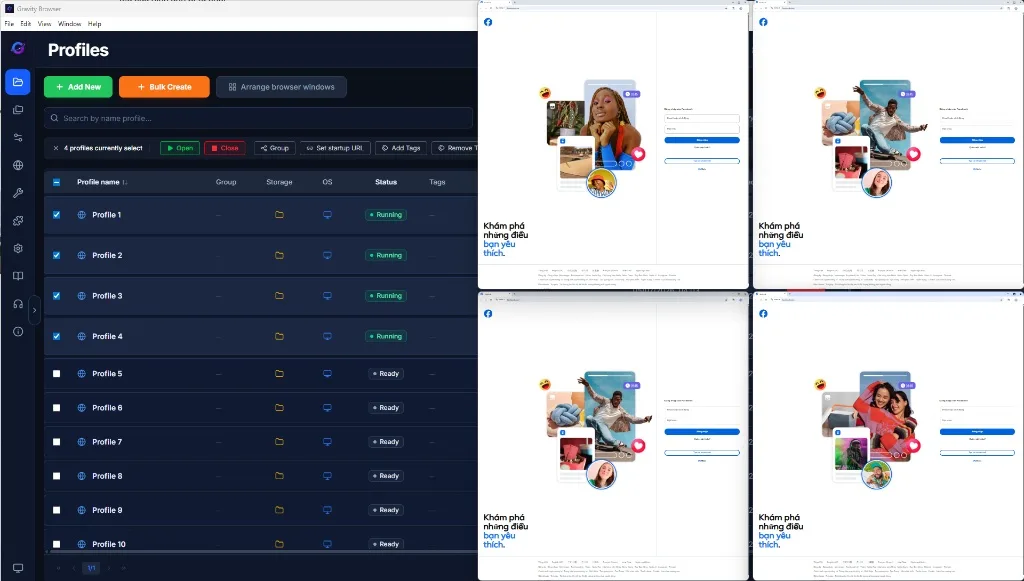
InviBrowser allows organizations to manage each account within a separate Browser Profile, featuring:
-
Separate Cookies and Sessions.
-
Profile-specific proxy settings.
-
Private browser fingerprinting.
-
Use Groups and Tags to categorize accounts.
-
Share the profile with members.
-
Decentralization by Team.
Example:
Profile 01 → Personal Facebook Account A → Business A
Profile 02 → Personal Facebook Account B → Business B
Profile 03 → Personal Facebook Account C → Business C
After logging in, Cookies and Sessions are stored in the corresponding Profile so that the correct working environment can be restored the next time you log in.
This does not replace Meta's official permission system, nor does it guarantee that accounts will avoid restrictions. The value of InviBrowser lies in helping teams organize and manage multiple account environments more clearly, instead of having all login sessions mixed in the same browser.
Try InviBrowser for free to create separate browser profiles for each Facebook account and manage multiple environments more centrally.
Conclusion
Adding or restoring Facebook Business Manager starts with correctly identifying the issue: whether you need to add people, add ad accounts, regain admin access, or appeal a restricted Business account.
If there are other Admins, re-granting permissions is usually straightforward. If your account or Business is restricted, check the Business Support Home and follow the exact verification steps or appeal process provided by Meta.
For teams that need to operate multiple Facebook Business accounts and ad accounts, InviBrowser can help organize each account in a separate Browser Profile, store Cookies/Sessions, and manage proxies and access permissions in a more centralized manner.
See also:
-
Understanding Cookies, Sessions, and Browser Profiles Correctly
-
What Is an Antidetect Browser? A Complete A-to-Z Guide for Beginners
You can try InviBrowser for free to manage multiple browser profiles and maintain clearer Facebook login environments when working in a team.